Getting Started
To help users quickly get started with the Zhumu Furniture Design System, please follow the steps below in order. This will significantly improve your work efficiency.
Basic SketchUp Tutorial
I. Shortcut Key Settings
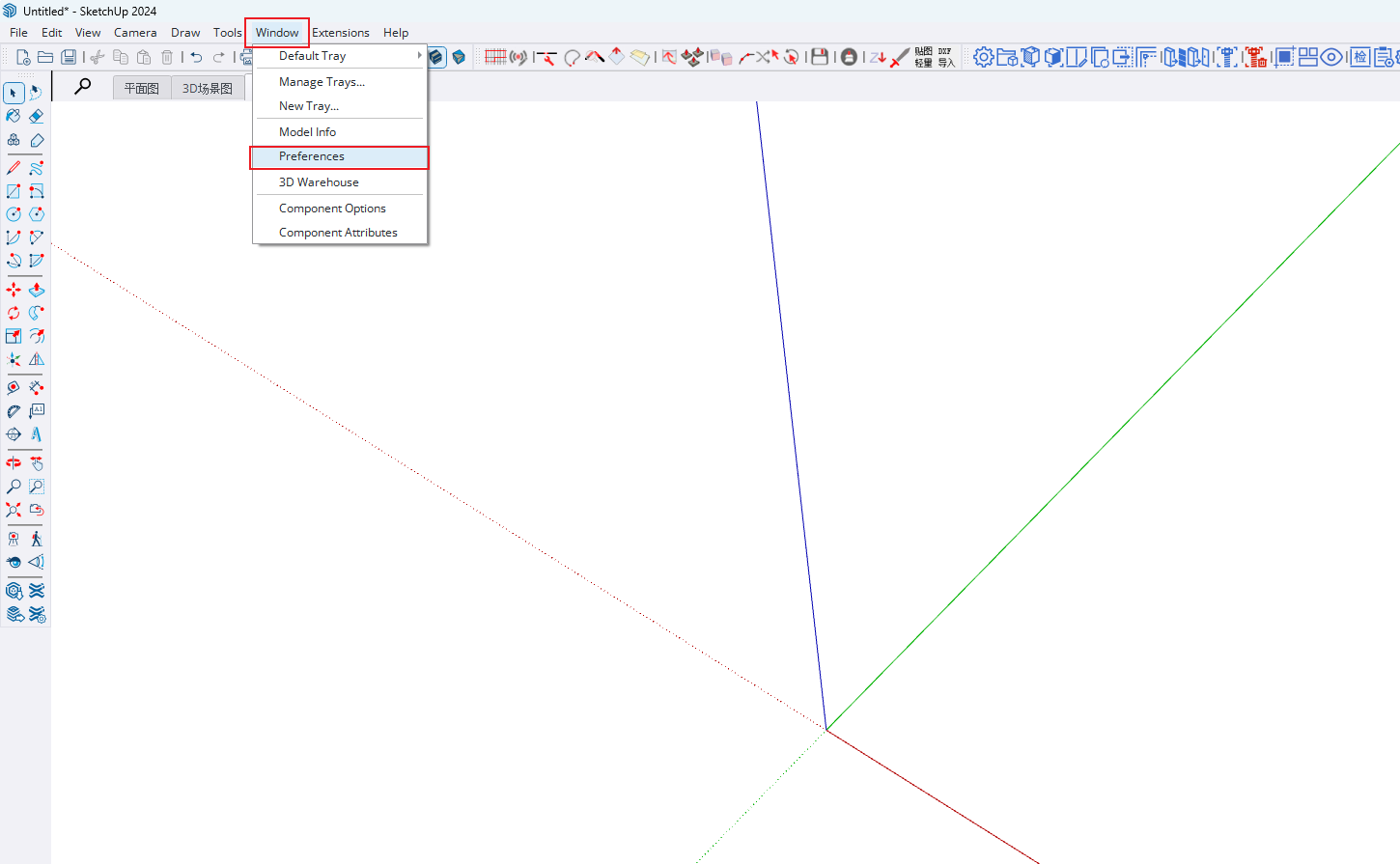
Open Window menu -> System Settings
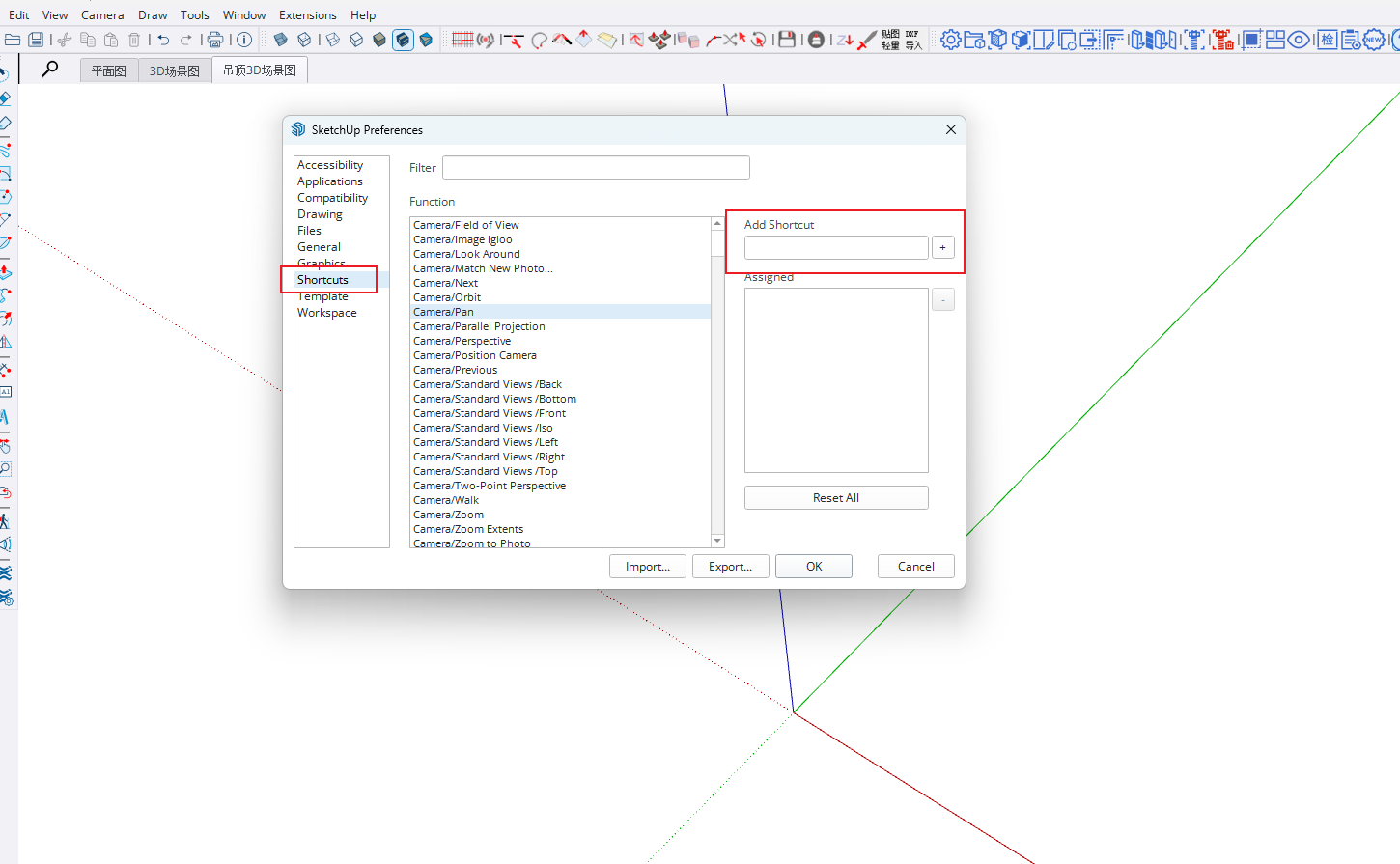
Select Shortcuts [Enter the first few characters of the function name in the filter to filter], choose different functions in the right list, click the buttons on your keyboard in the red input box, and click the + sign to add.
-
Zhumu recommends the following shortcut settings:
- Move: W
- Rotate: E
- Scale: S
- Top View: T
- Front View: F
- Perspective Display: C
- Hide: H
- Unhide: Ctrl+H
- Push/Pull: A
- Paste in Place: Shift+Ctrl+V
- Hide/Show Rest of Model: Shift+H
- Pick Internal Space: F3
II. Basic Tool Usage Introduction
Selection Tool [Shortcut: Q or Spacebar]
-
Single Click Selection [Left-click on the cabinet and release to select]
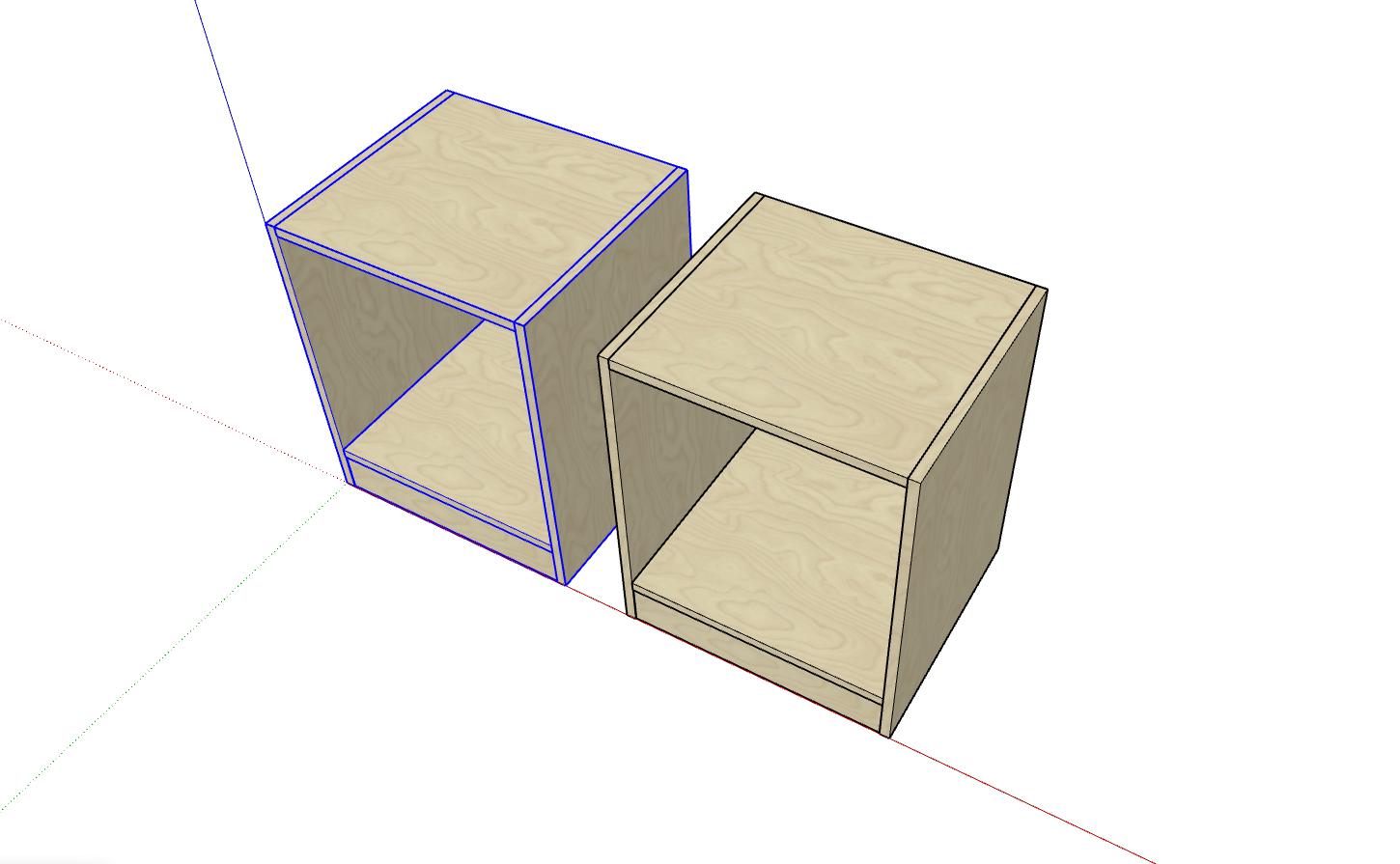 With auxiliary keys:
- Hold Ctrl key [Add to selection], left-click another cabinet to select both simultaneously [Mouse cursor will show a + sign]
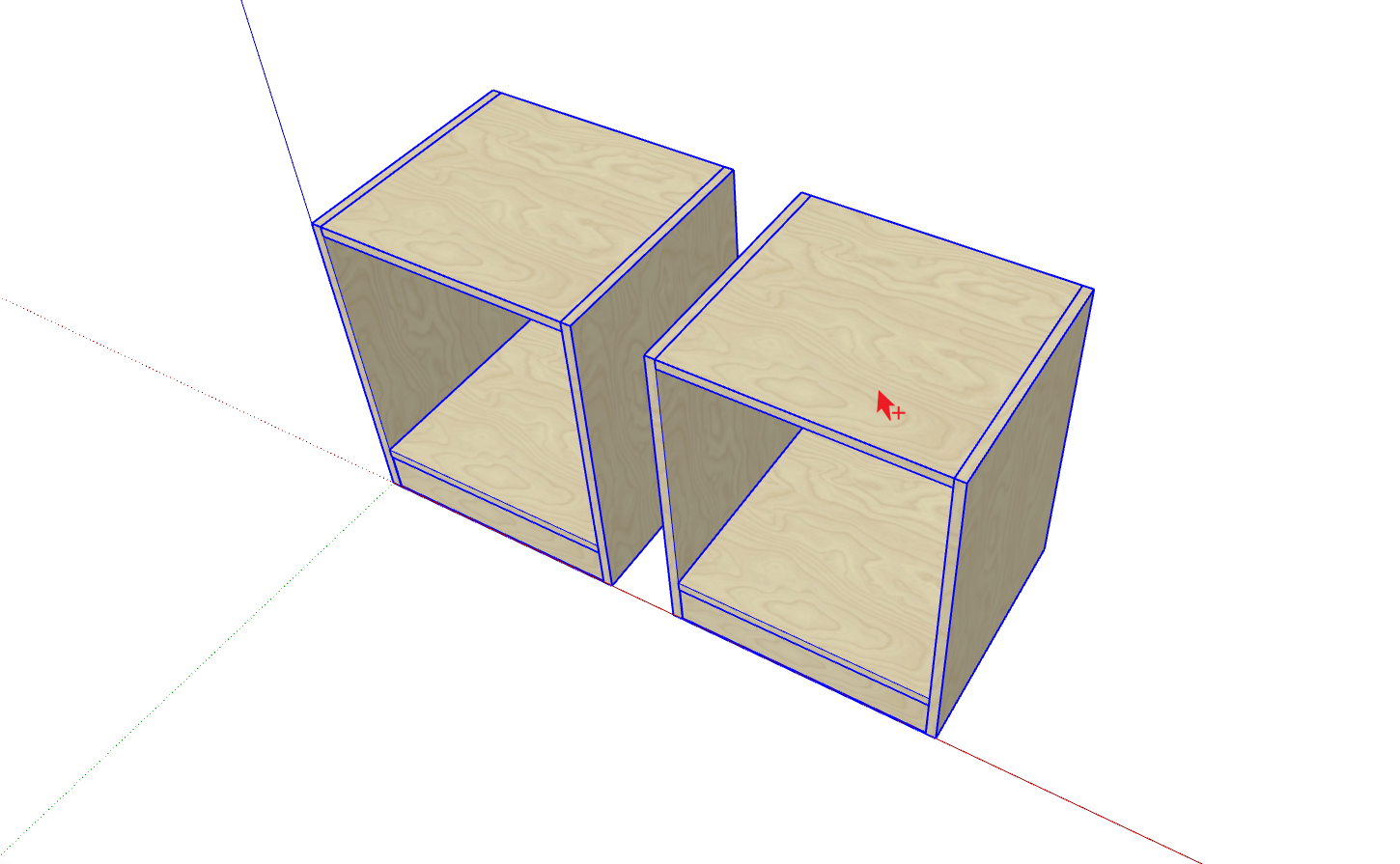
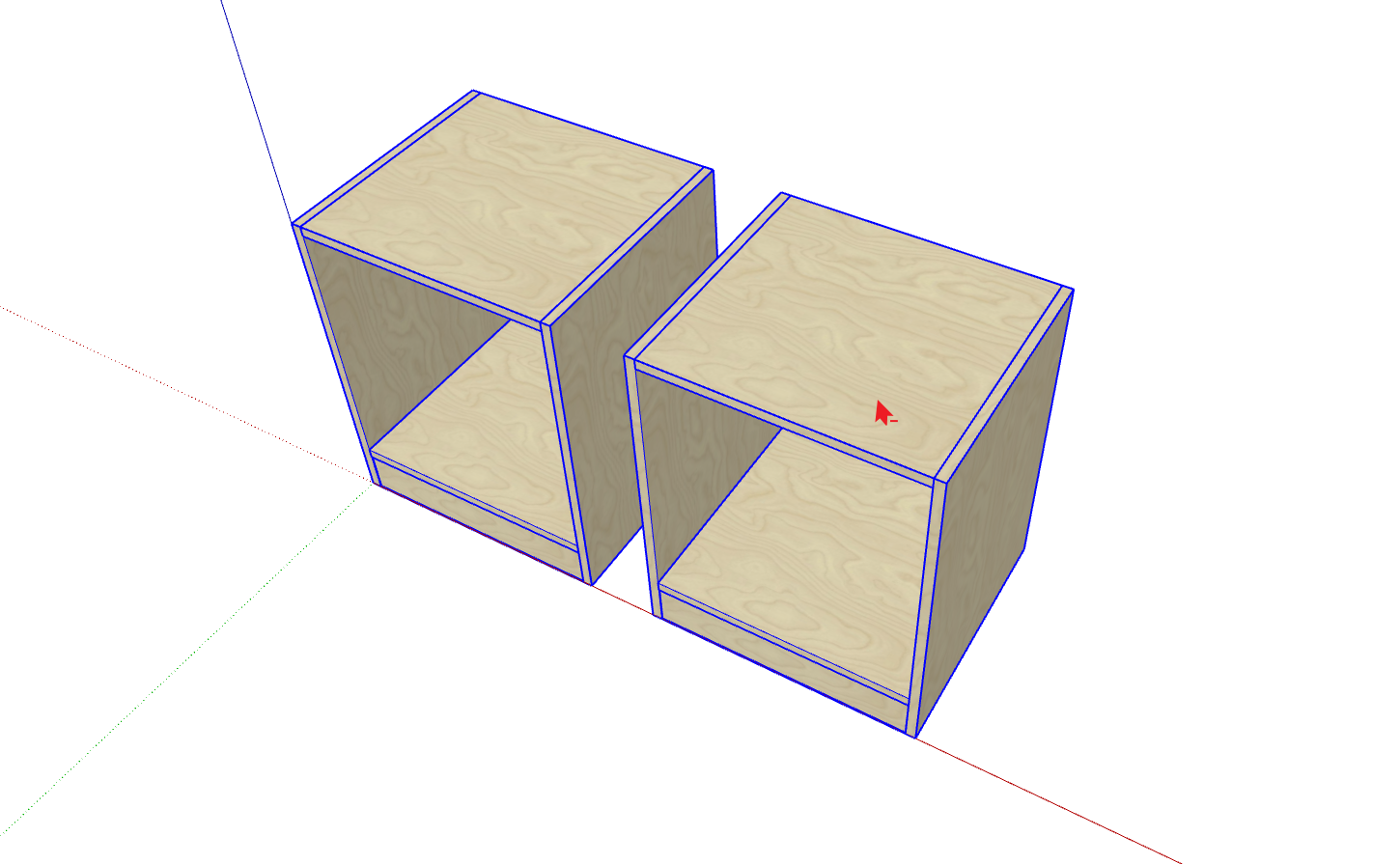
- Hold Shift+Ctrl keys [Subtract from selection]: Left-click one of the cabinets [Mouse cursor will show a - sign]
- Hold Shift key [Add/Subtract]: If the clicked object is already selected, it will be removed from selection; otherwise, it will be added to selection
- Ctrl+A: Select all visible entities in the model
- Hold Ctrl key [Add to selection], left-click another cabinet to select both simultaneously [Mouse cursor will show a + sign]
-
Double Click Selection
1. Double-click a geometric entity to quickly select that entity and entities formed by it [e.g., double-click inside a panel face]
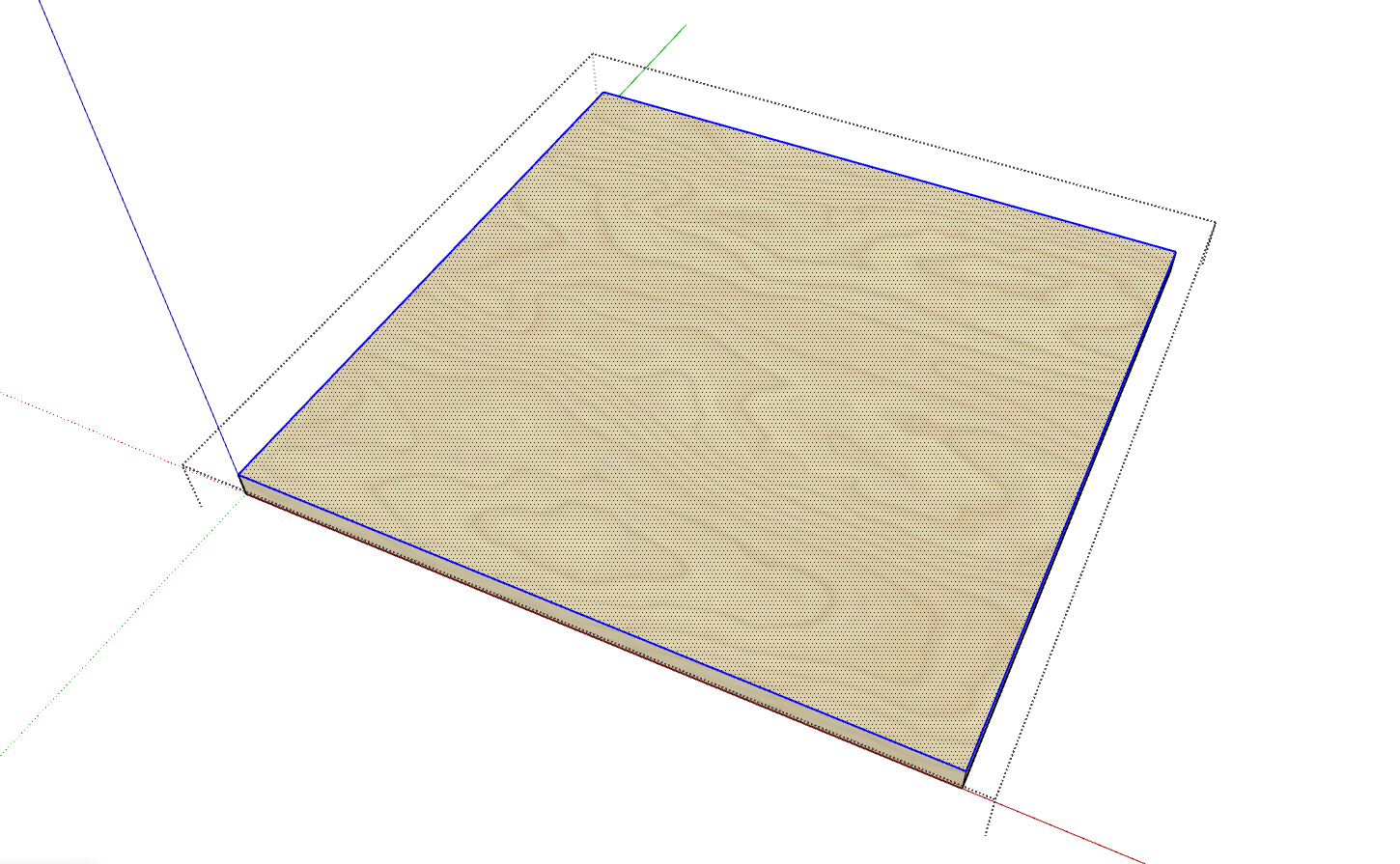 2. If the double-clicked object is a group or component, double-clicking opens it for editing [As shown above, double-click the panel to edit internal entities]
 -
Triple Click Selection
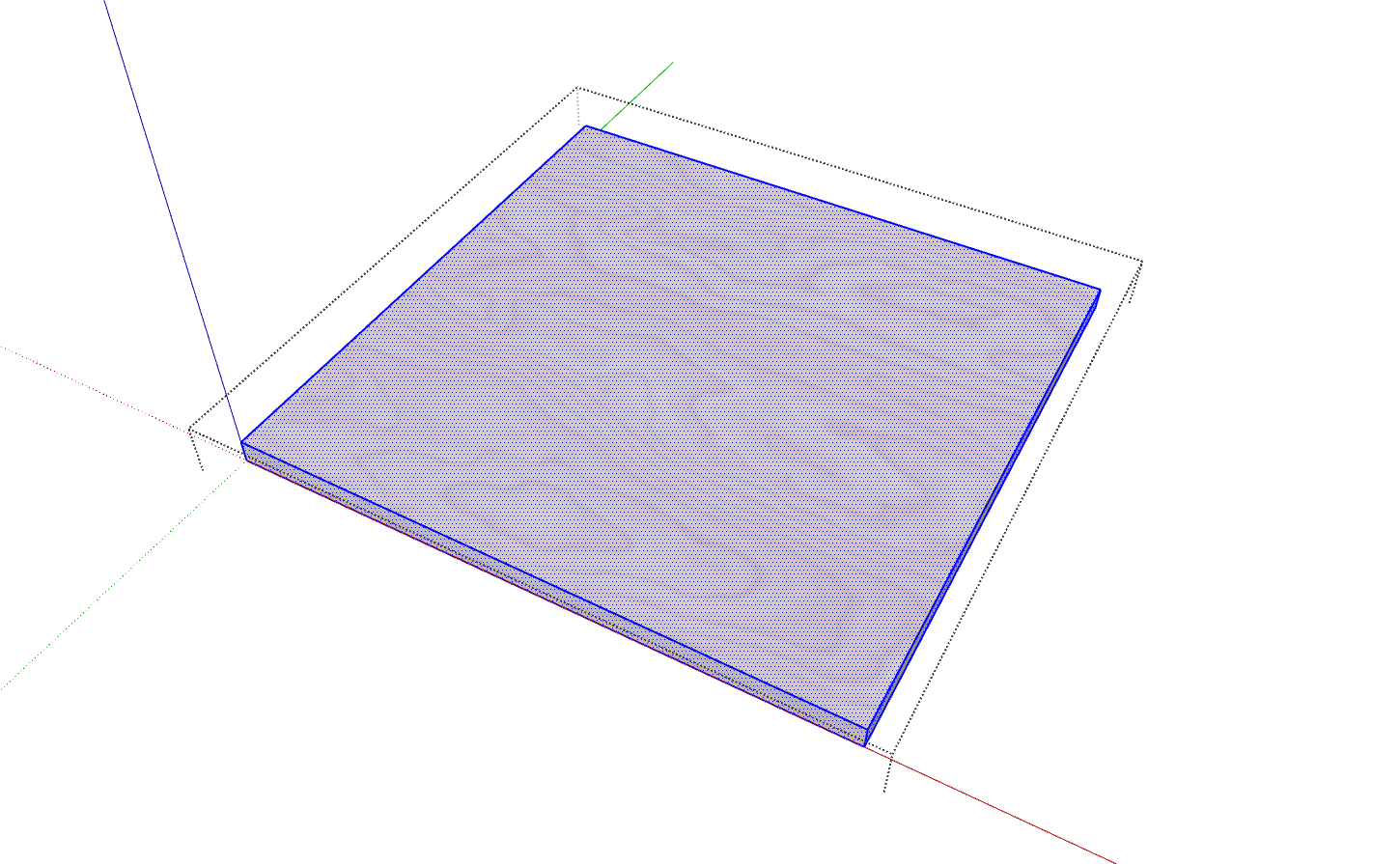
Quickly left-click three times to select all entities of the current geometry [Triple-click the top face inside a panel to select all faces and edges]
-
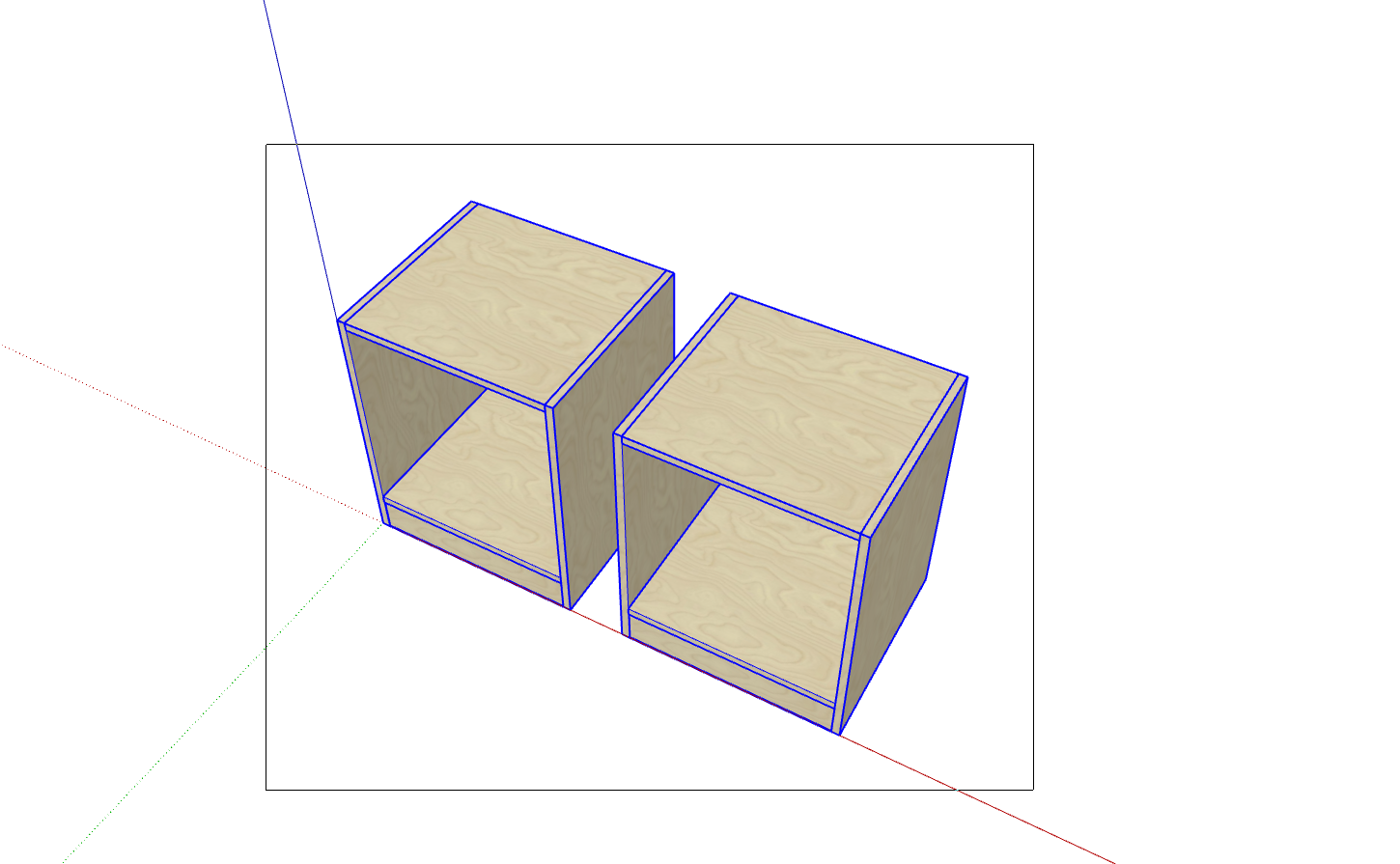
Box Selection
Hold left mouse button and drag from left to right; entities completely contained within the selection box will be selected
-
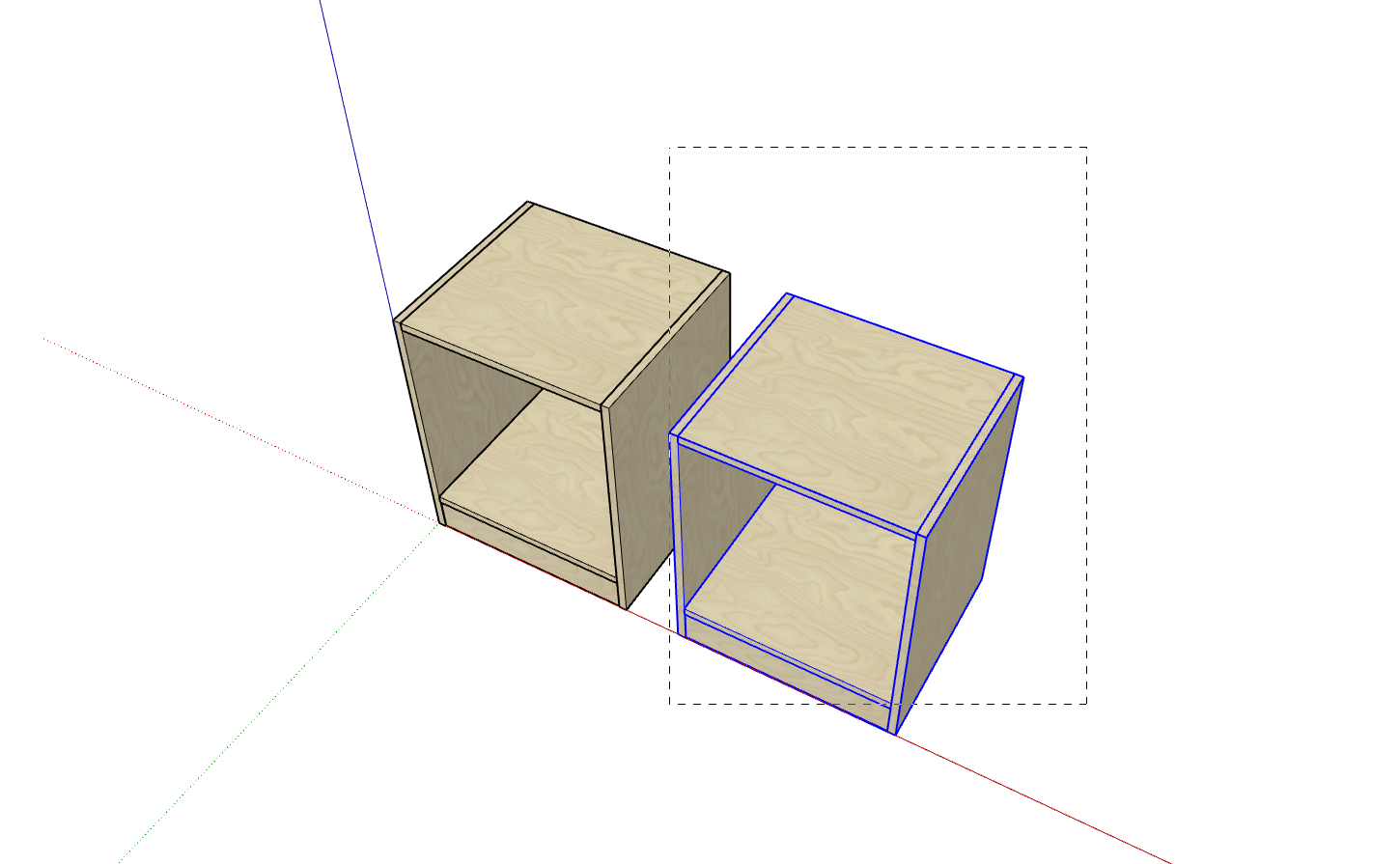
Cross Selection
Hold left mouse button and drag from right to left; entities touched by the selection box will be selected
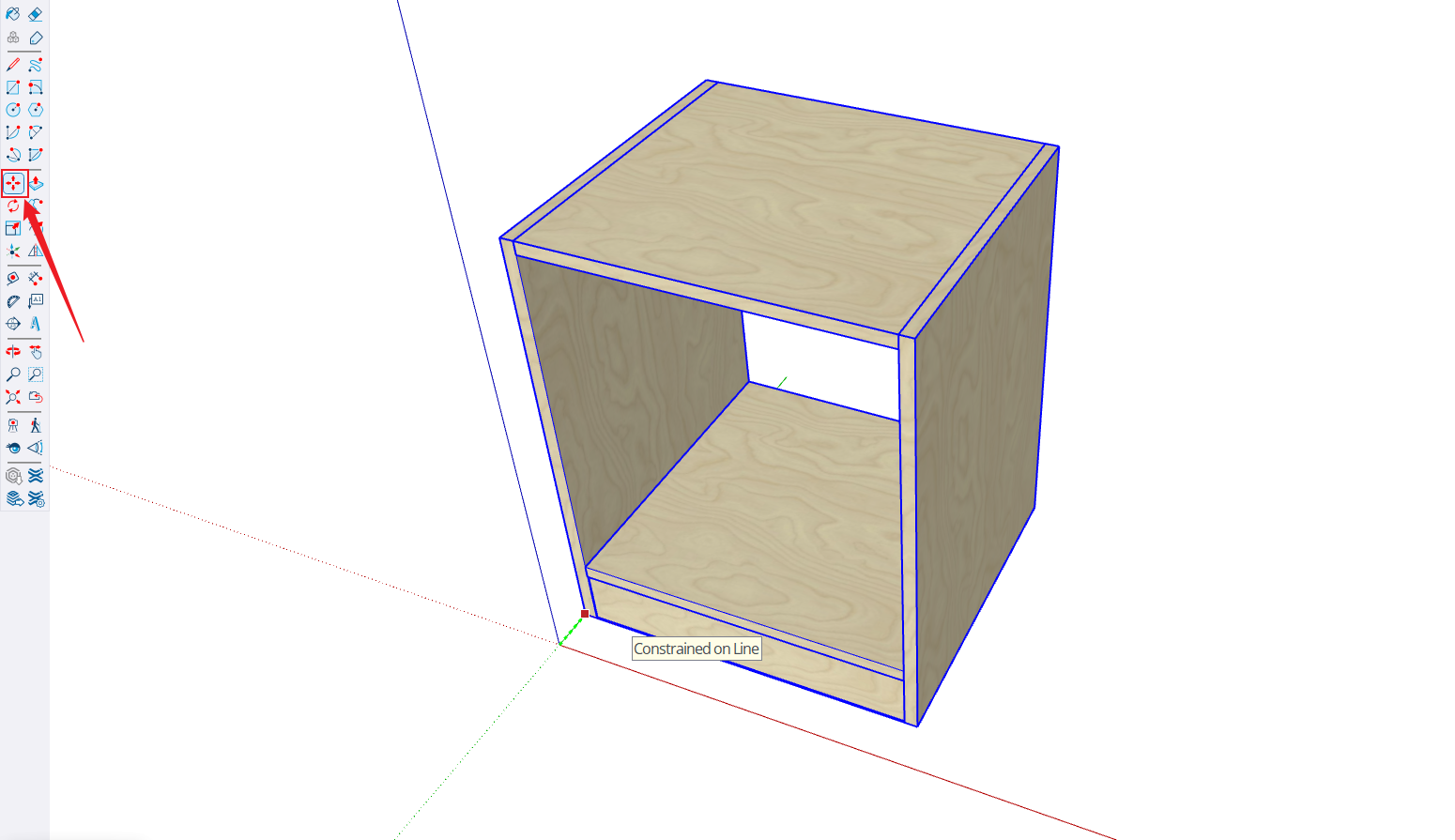
Move Tool [Shortcut: W]
- Before moving objects, first use the selection tool [Press Q or Spacebar] to select the object, then press W key to activate the move tool. Specific operations:
- Left-click the starting point and release
- Move the mouse to determine the movement direction [Hold arrow keys to constrain to X,Y,Z axes: left arrow for Y-axis, right arrow for X-axis, up arrow for Z-axis]
- Enter movement distance and press Enter, or move mouse to the endpoint and left-click to complete the move
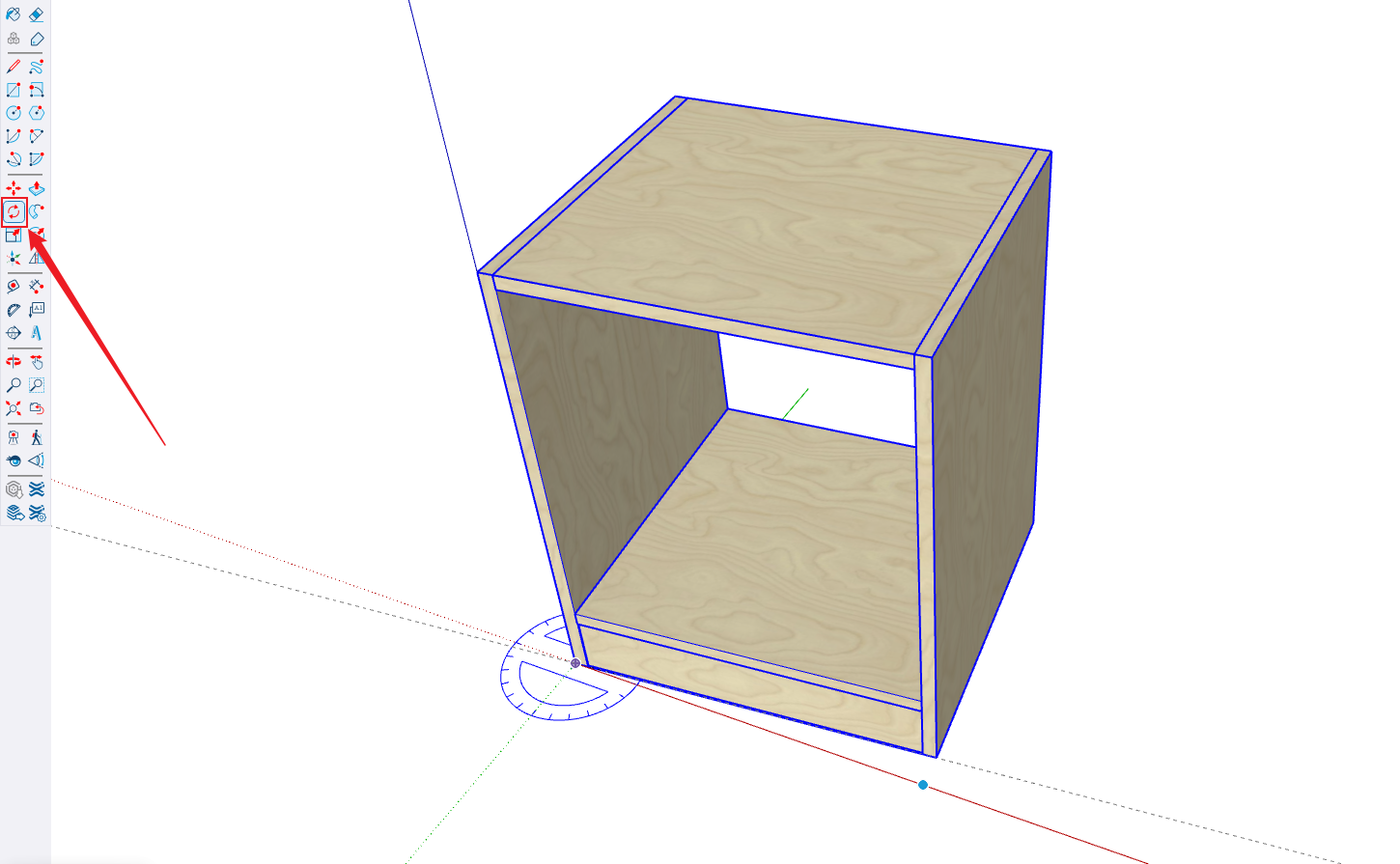
Rotate Tool [Shortcut: E]
- Before rotating objects, first use the selection tool [Press Q or Spacebar] to select the object, then press E key to activate the rotate tool. Specific operations:
- Left-click and release to determine the rotation base point
- Move cursor within the circular icon, left-click and release to pick the rotation start point
- Move mouse to determine the rotation direction
- Enter rotation angle and press Enter, or left-click the endpoint and release to complete the rotation
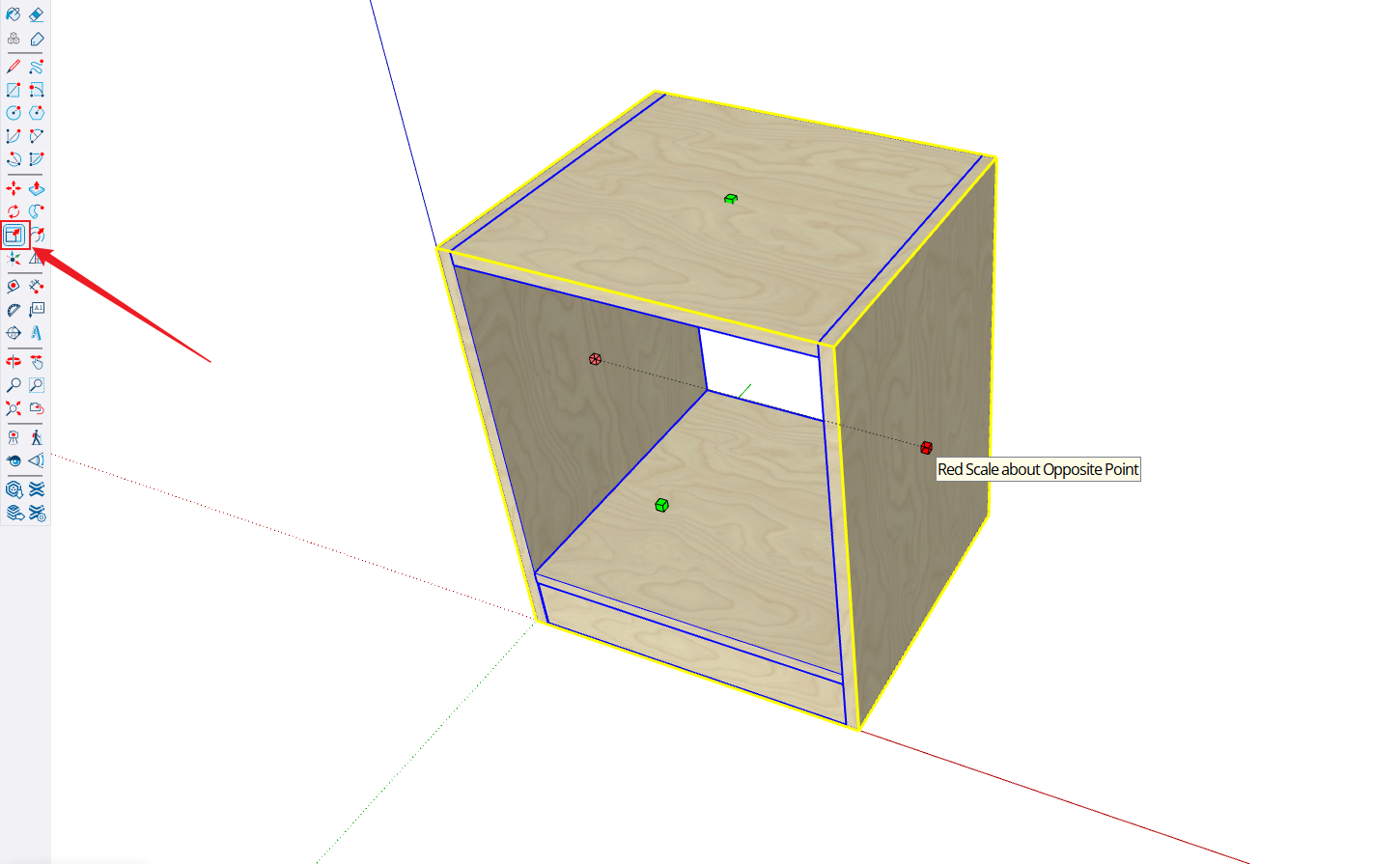
Scale Tool [Shortcut: S]
- Before scaling objects, first use the selection tool [Press Q or Spacebar; scaling tool is not recommended when designing cabinets] to select the object, then press S key to activate the scale tool. Specific operations:
- Click the scale handle
- Move mouse to adjust scale ratio / Enter scale value
- Click to complete the scaling operation
Move Copy and Array
- Before moving and copying objects, first use the selection tool [Press Q or Spacebar] to select the object, then press W key to activate the move tool. Specific operations:
- Press and release Ctrl key to activate copy function [Move icon will show a + sign]
- Click the copy starting point
- Move mouse to pick the copy direction [Hold arrow keys to constrain to X,Y,Z axes: left arrow for Y-axis, right arrow for X-axis, up arrow for Z-axis]
- Enter distance and press Enter or click endpoint to complete copy
- After step 4, immediately enter [*array quantity] or [/array quantity] and press Enter to create an array of objects
Paste in Place [Shortcut: Ctrl+X, Shift+Ctrl+V]
- Before pasting in place, first use the selection tool [Press Q or Spacebar] to select the object. Specific operations:
- Press Ctrl+X to cut the object
- Double-click the cabinet
- Press Shift+Ctrl+V to complete the operation
- Click outside the dashed line to exit the cabinet
Push/Pull Tool [Shortcut: A]
- The push/pull tool can quickly edit panel dimensions including thickness, length, width, etc. For example, to change panel width:
- Double-click the cabinet
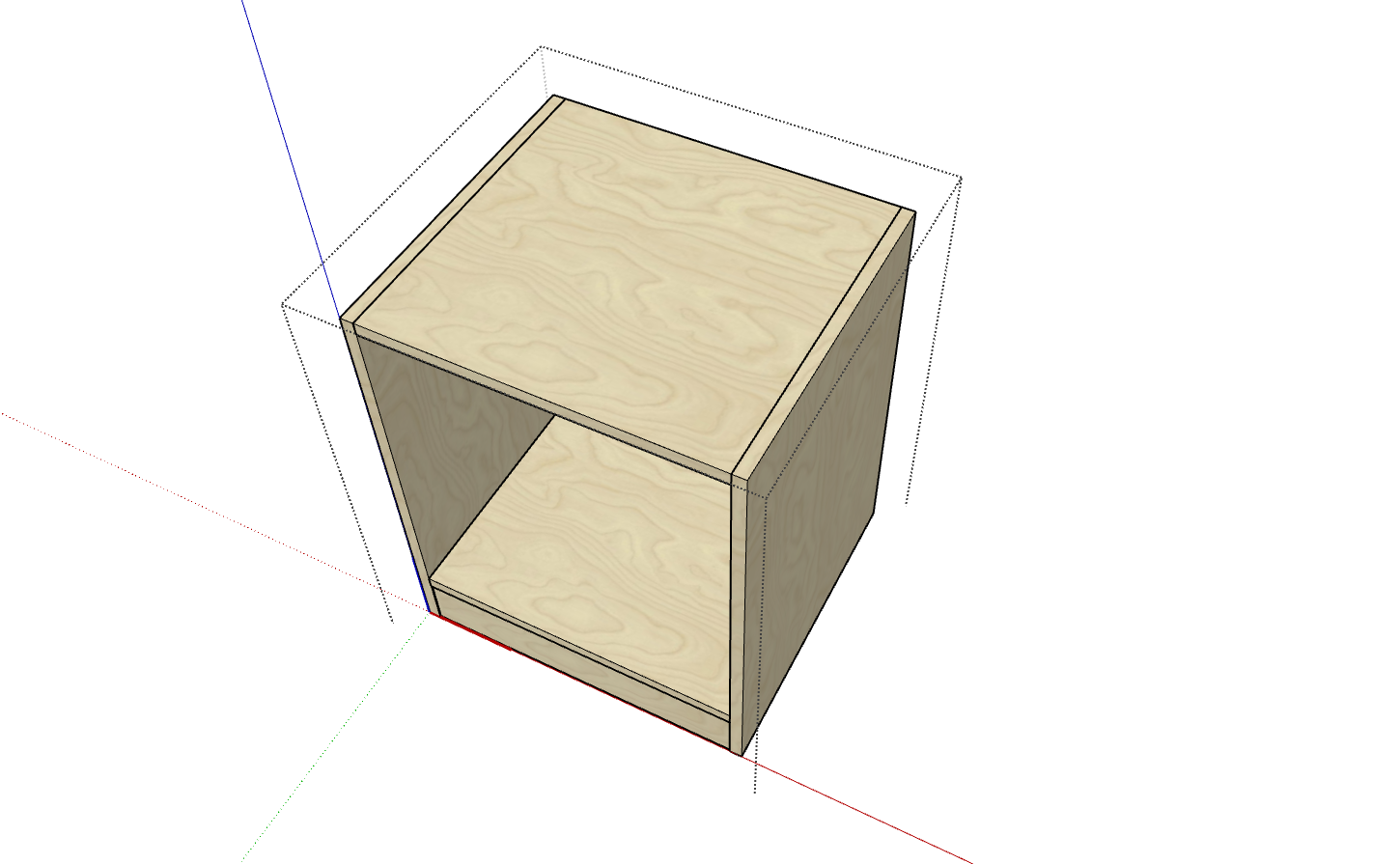
- Double-click the panel
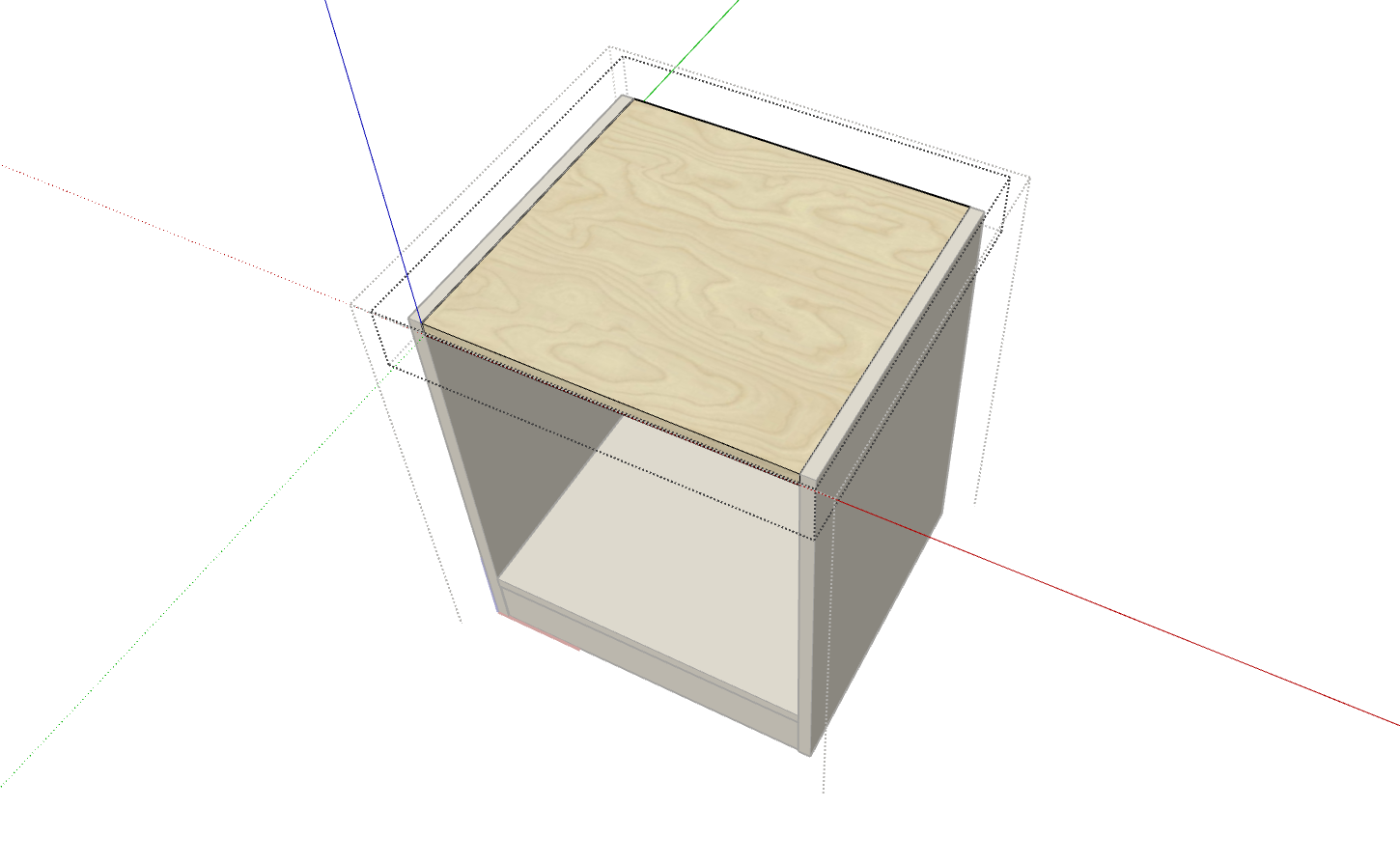
- Press [Shortcut A] and move cursor to the front face of the panel; the front side will be automatically selected. Click left mouse button and release, then move the mouse
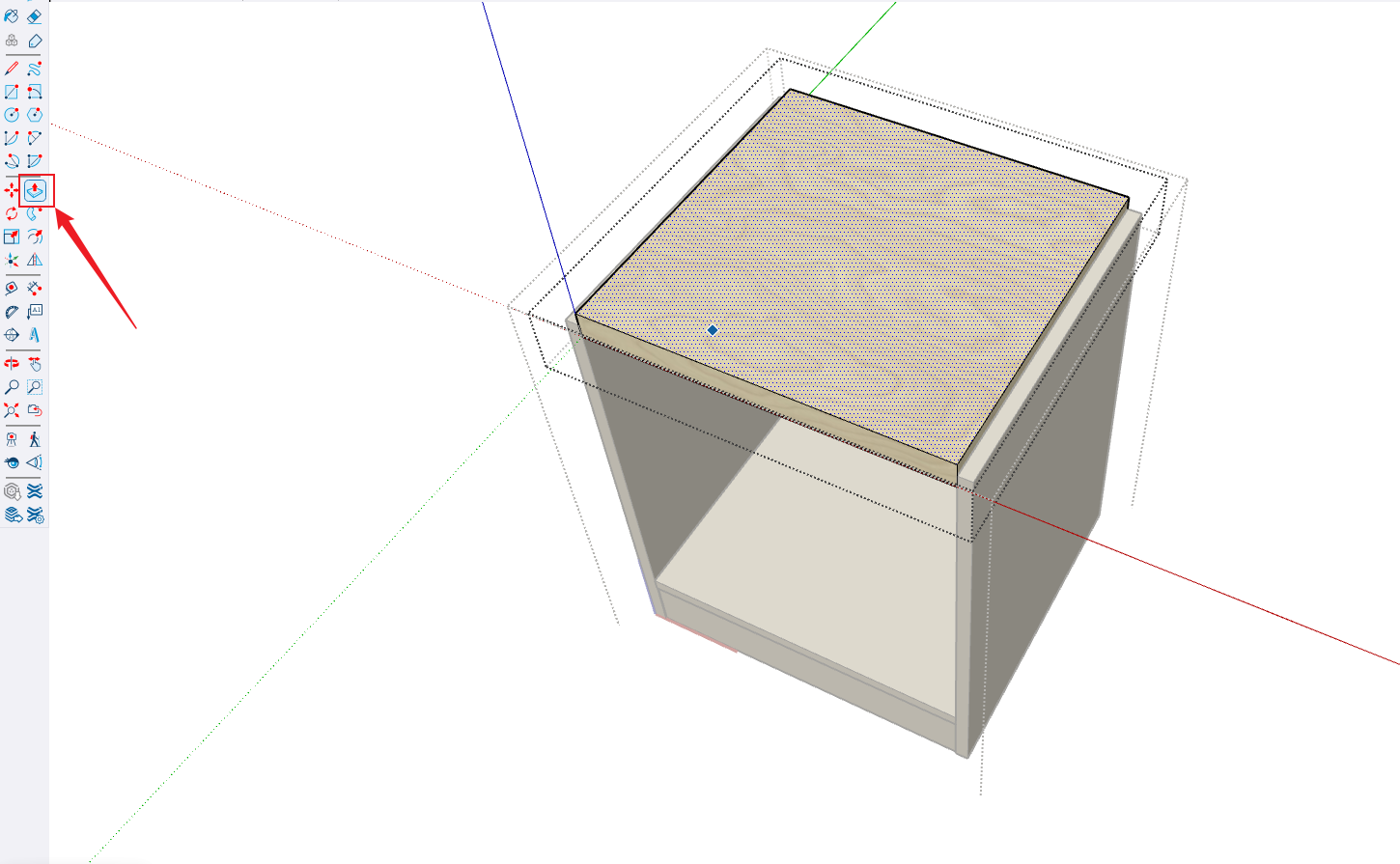
- Double-click the cabinet
View Switching Operations [Shortcuts: T, F, C]
- Flexible view operations will greatly improve work efficiency
- Top View [Shortcut: T]
- Front View [Shortcut: F]
- Perspective Display [Shortcut: C]
- Rotate View [Hold middle mouse button and move mouse in any of the four directions]
- Pan View [Shift + hold middle mouse button and move mouse]