Introduction
If users wish to reuse freely designed cabinet models, they can upload them to their personal library. When needed again, these models can be modified to create new library items. The following steps outline the quick upload process.
Detailed Steps
-
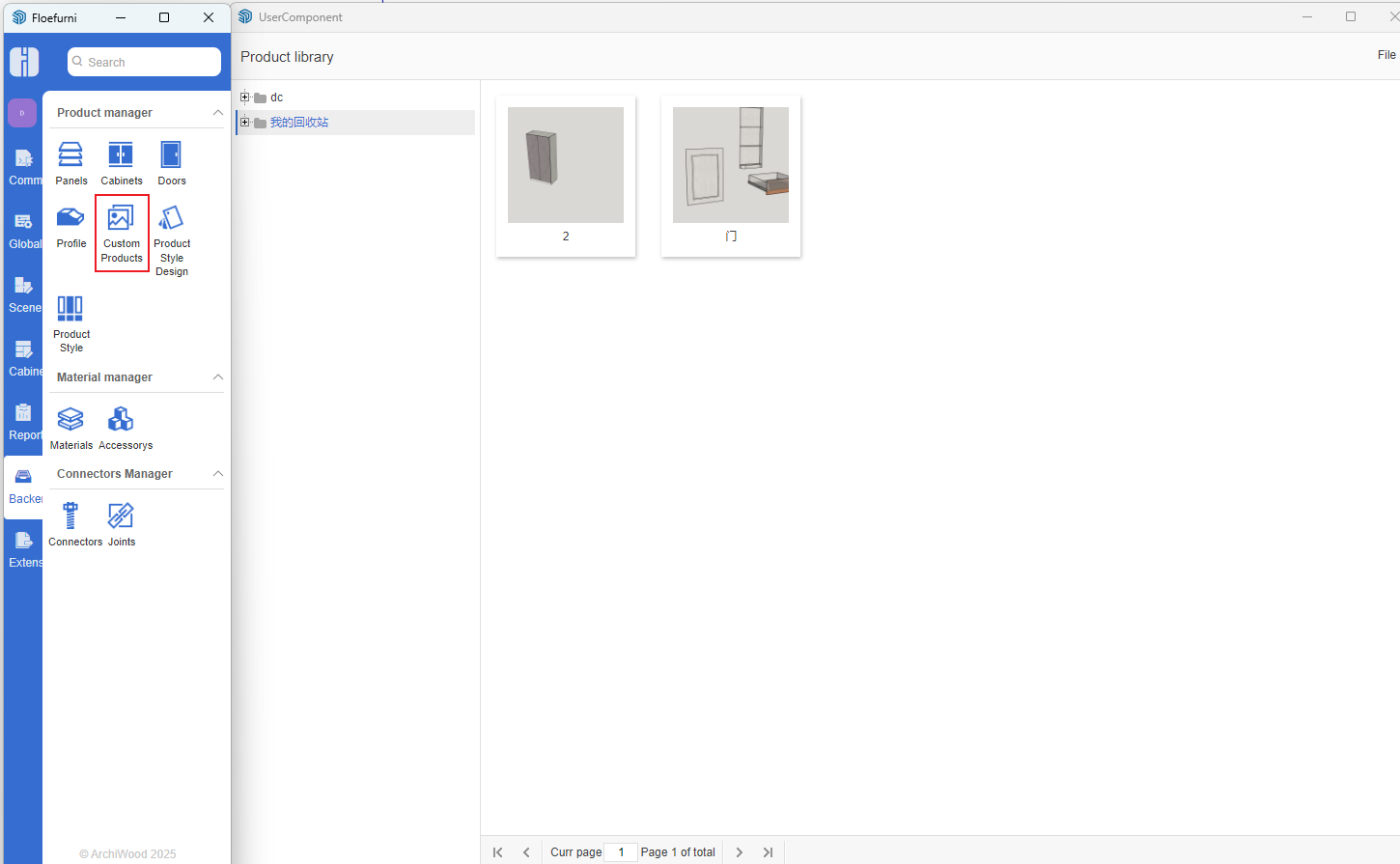
Open the User Library Management window.
-
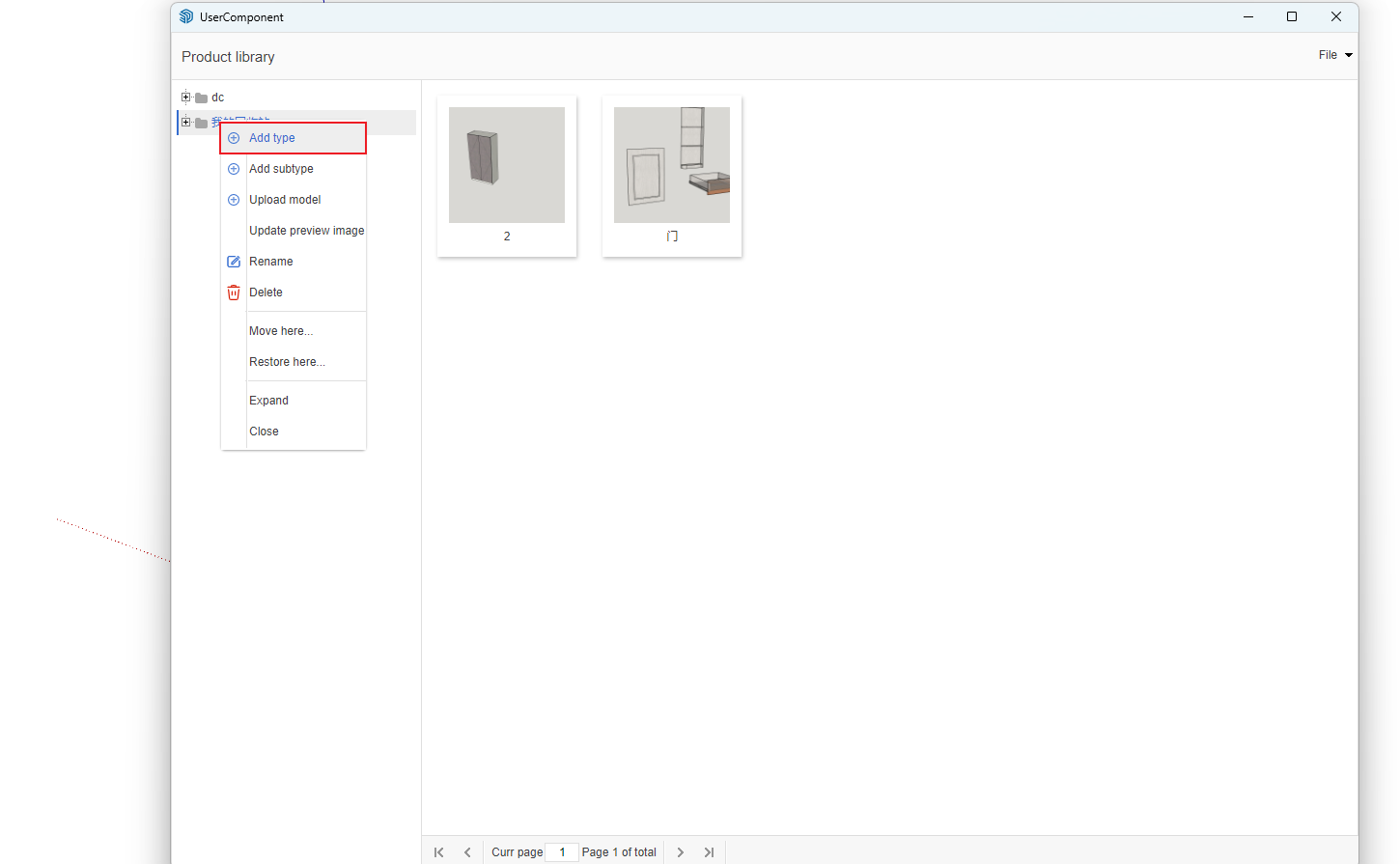
In the left window, right-click on any node to create your own directory structure. (Click "Create Category" or "Create Subcategory".)
-
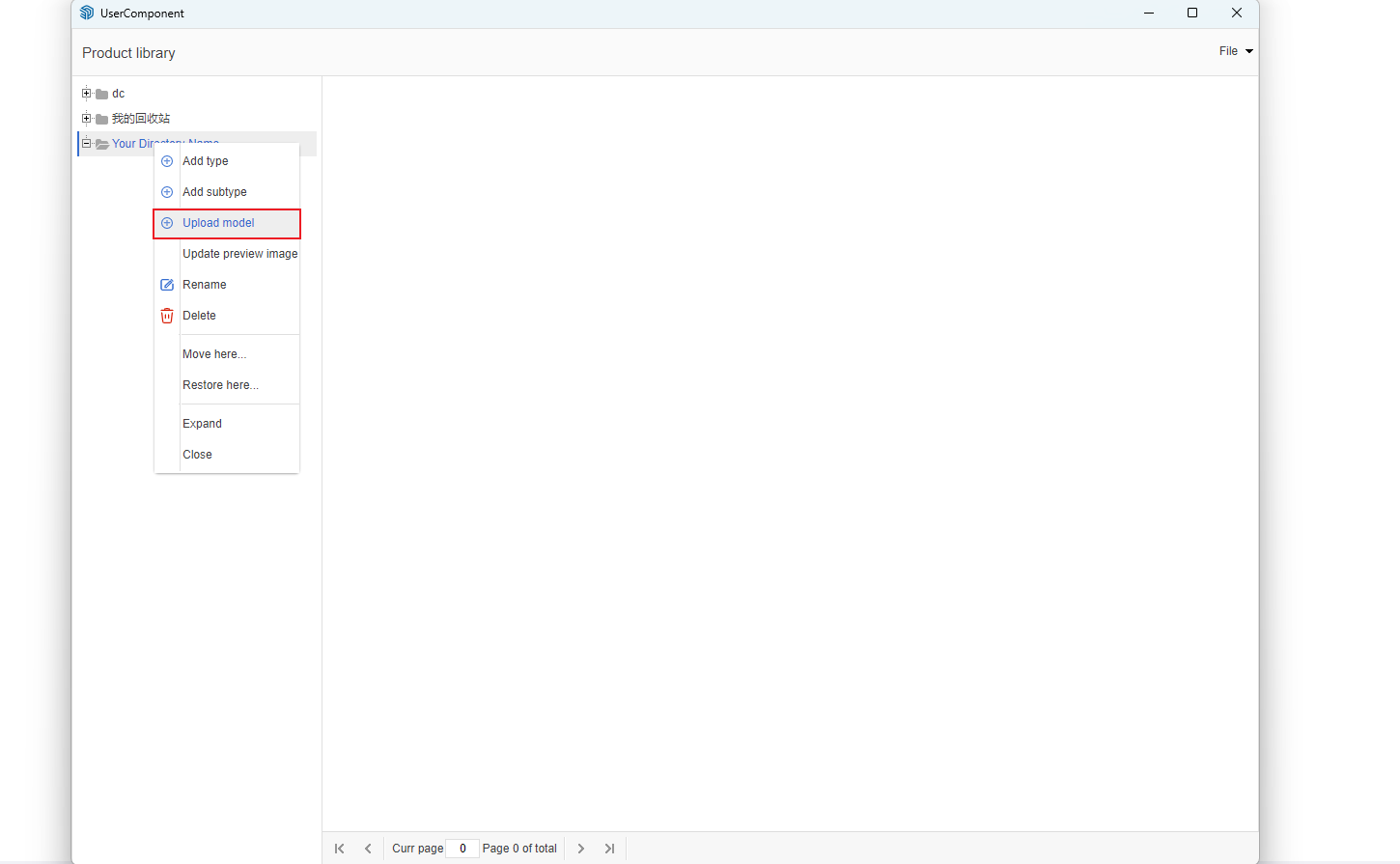
Select the created cabinet model in the scene (the cabinet will be highlighted with a blue wireframe). Then, in the User Library window, right-click under your directory and select "Upload Model".
-
In the pop-up window, fill in the model name and code. After setting, click "Save". (The preview image and SKP model do not need to be manually selected; the software will automatically capture the currently selected cabinet model.)
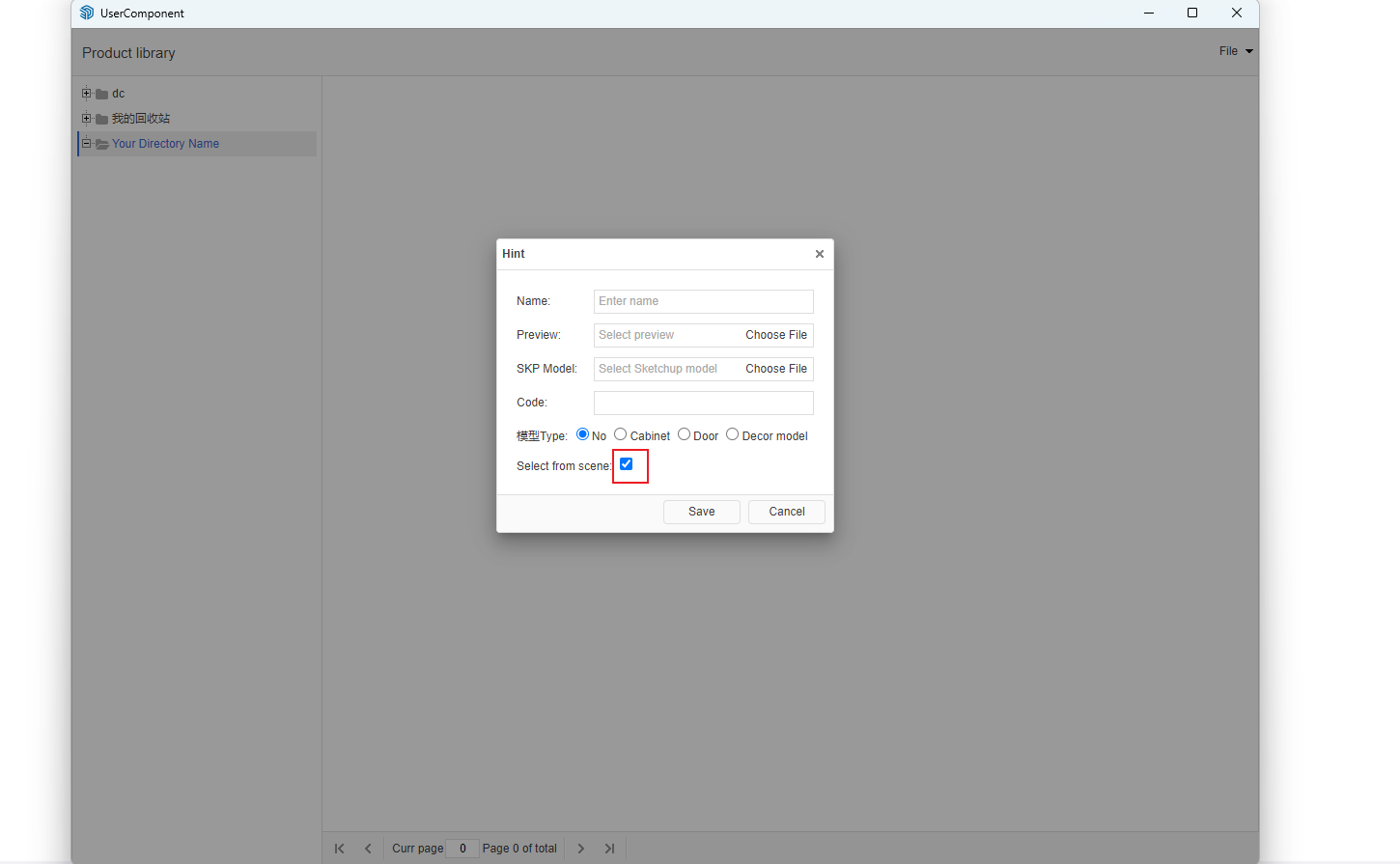
Using the User Model Library
-
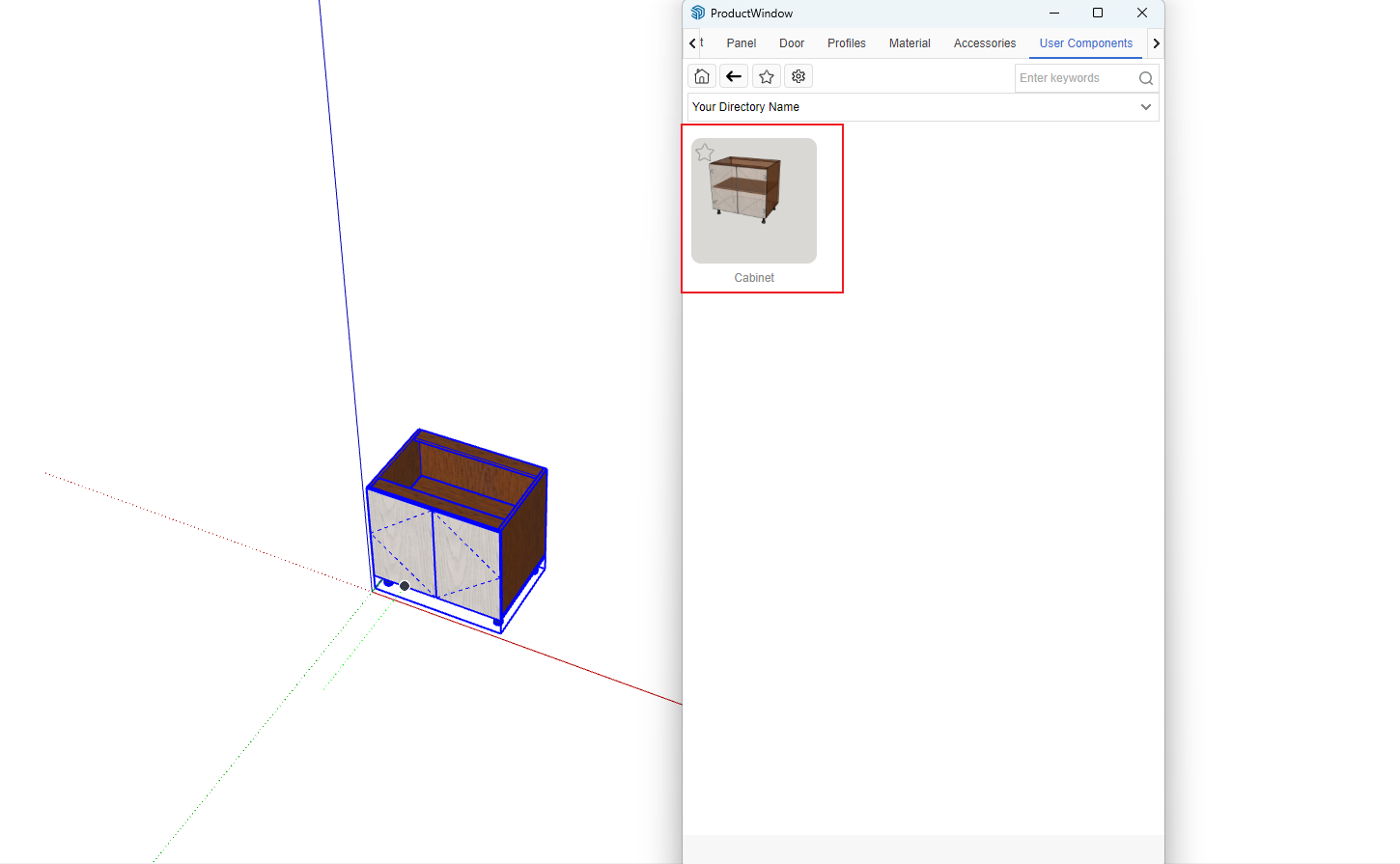
After successful upload, close the User Library Management window and open the Product Library. You can then see the recently uploaded model in the User Library. Double-click to download and use it.