Introduction
Global parameter settings primarily handle common parameters such as edge banding and hardware. This is the first step that every user must complete when using the Zhumu system for the first time.
Open Global Parameter Settings

Default global settings are as follows:

Detailed Explanation
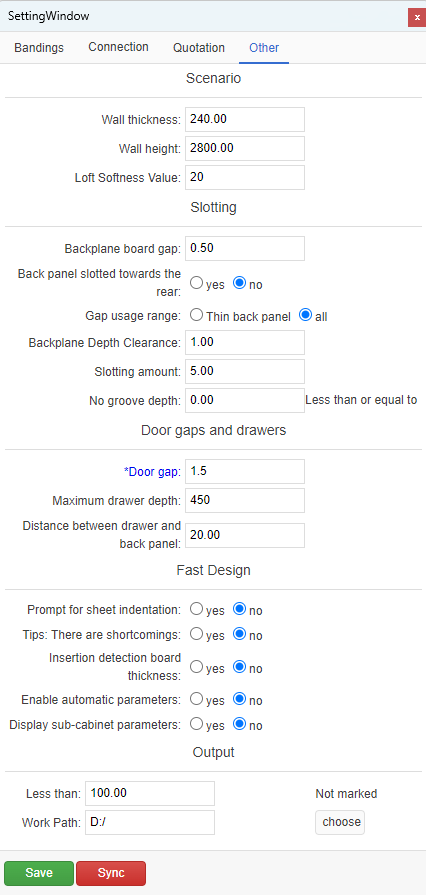
Groove Settings
The value for back panel clearance is typically 0.5. For example, if the back panel thickness is 5mm, the groove will automatically increase to 6mm (adding 0.5mm on each side).
The value for back panel depth clearance is typically 1. For example, if the back panel groove depth is 5mm, the actual groove depth will automatically increase to 6mm (adding 1mm depth).
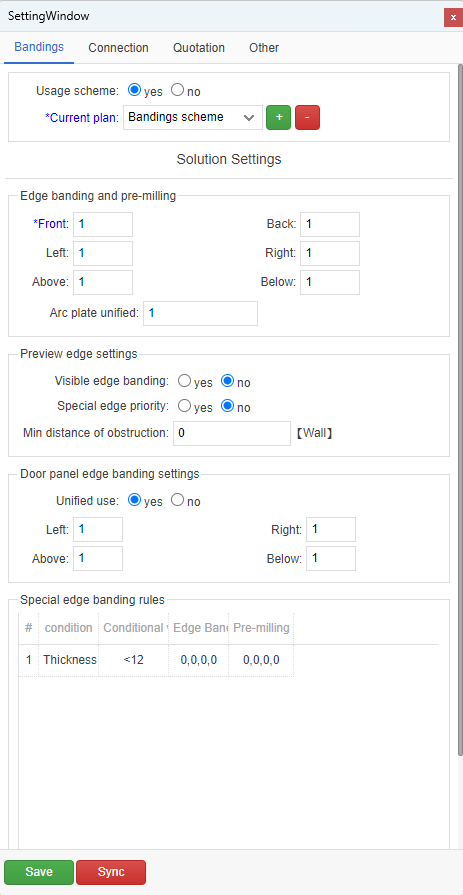
Edge Banding Settings
- When "Uniform Use" is set to "Yes", edge banding for all panels will use uniform settings. If panel edge banding data hasn't been set individually, even with "Uniform Use" set to "No", the panel will still use these default settings.
Unedged Settings
- There are 3 conditions for unedged settings: first, the panel name must contain specific strings; second, when panel thickness is below a certain value, all 4 edges won't have edge banding; third, when panel thickness isn't below the threshold but one edge length is below a certain value, that specific edge won't have edge banding.
Door Panel Edge Banding Settings
- When "Uniform Use" is set to "Yes", all door panels will use uniform edge banding settings.
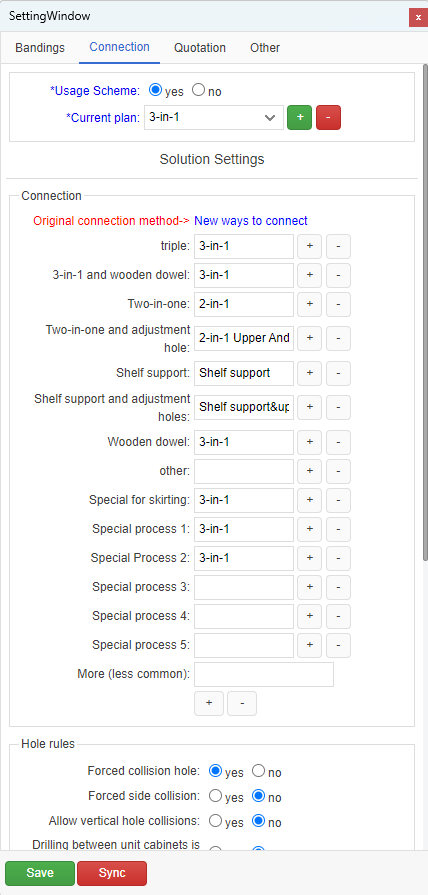
My Connection Methods
Under "My Connection Methods", there are 7 major types for different connection techniques (32mm system, dowel, etc.). Users can select and set these 7 types as their preferred connection methods. Note: When creating custom connection methods in the backend, users must select the corresponding type. If users haven't set connection methods yet, please complete this after finishing the next two tutorial chapters.
When "Use Default" is checked as "Yes", cabinets in the scene will automatically check if the global connection method matches their technique type. When matched, the global connection method will be used. If not matched or no relevant data is found in the backend, the cabinet will use its own connection method.
In "More Options", users can add less common connection methods that will be displayed when creating custom panels.
Hardware Drilling
Force Collision Drilling: Default is "Yes". Holes will only be created when panels collide with each other. For example, when a shelf end contacts two sides of a side panel and the shelf end has hardware information.
Force End Collision Drilling: Default is "No". If two panels form a collision relationship and both have hardware information, no holes will be drilled by default, otherwise holes will be drilled.
Allow Vertical Hole Collision: Default is "No". This option should temporarily remain set to "No".
Quotation
- These configurations can be set according to actual needs. They must be set and saved once during the first software installation.
Other Settings
Set the default wall thickness and height in the scene.
Set default door gaps in "Door Gaps". These are single-side gaps. For example, if the gap is set to 1 and door width is 500, 2 will be deducted from each side (left, right, top, and bottom).
Set the default maximum drawer depth in "Drawers". This serves as a reference value when automatically adding drawers to internal spaces. Set the distance from back panel according to requirements, typically 10-20mm.
In "Quick Design", set the default groove insertion amount. Default is 5mm. Other settings can remain default.
Drawing templates are for designing drawing frames when exporting drawings. This can be left unset. For personalized templates, contact customer service for detailed design.
After completing all above settings, be sure to click the Save button.


