Introduction
The Super Push/Pull tool can quickly modify panel thickness and dimensions, and can also push/pull cabinet dimensions, internal space dimensions, panel positions, etc.
Pushing/Pulling Panels
- Click the Super Push/Pull tool button
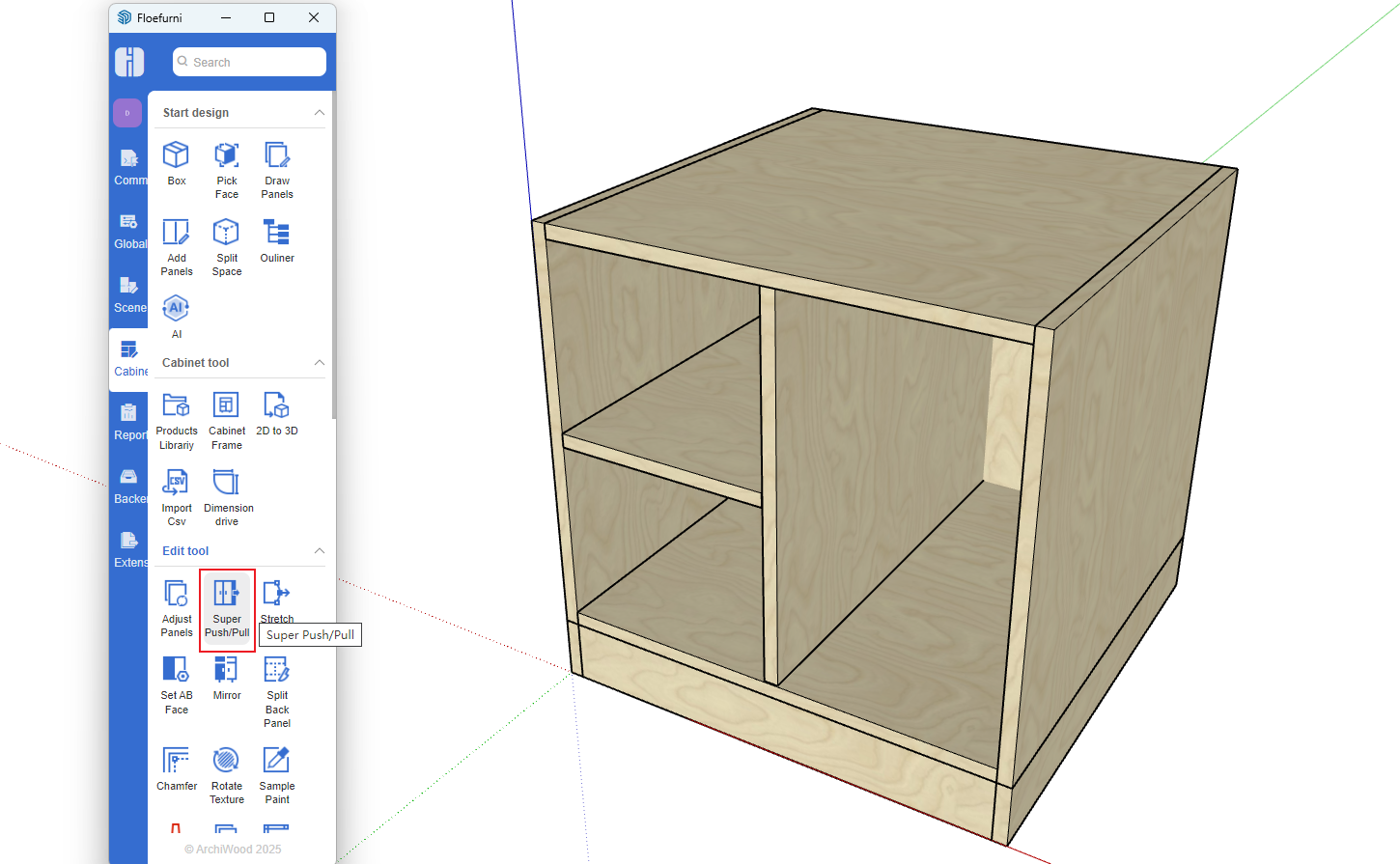
- Move the mouse to the face of the cabinet panel, click and drag to push/pull
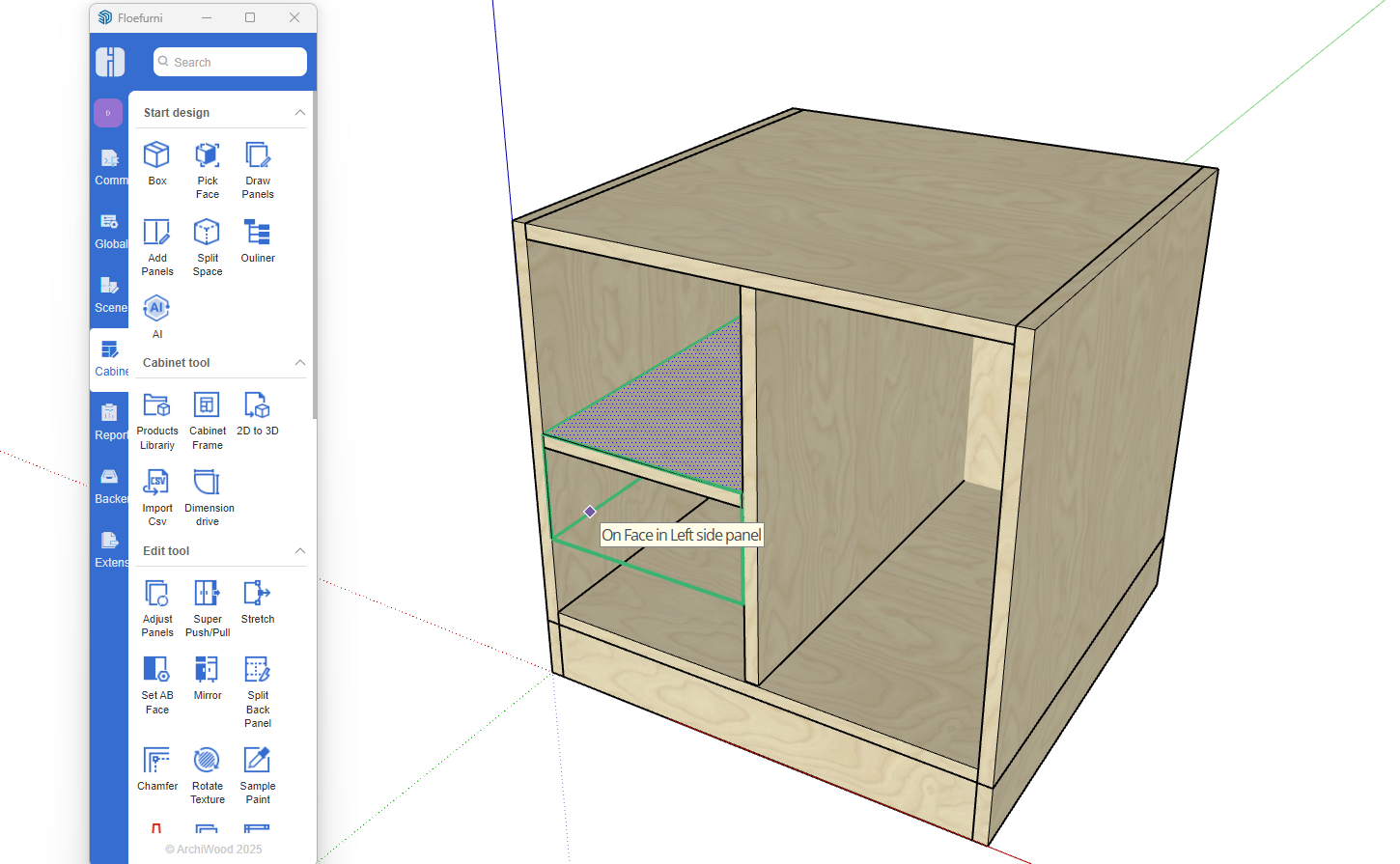
- During push/pull, directly enter the dimension and press Enter to move the panel to the specified position, and connected panels will automatically adjust accordingly
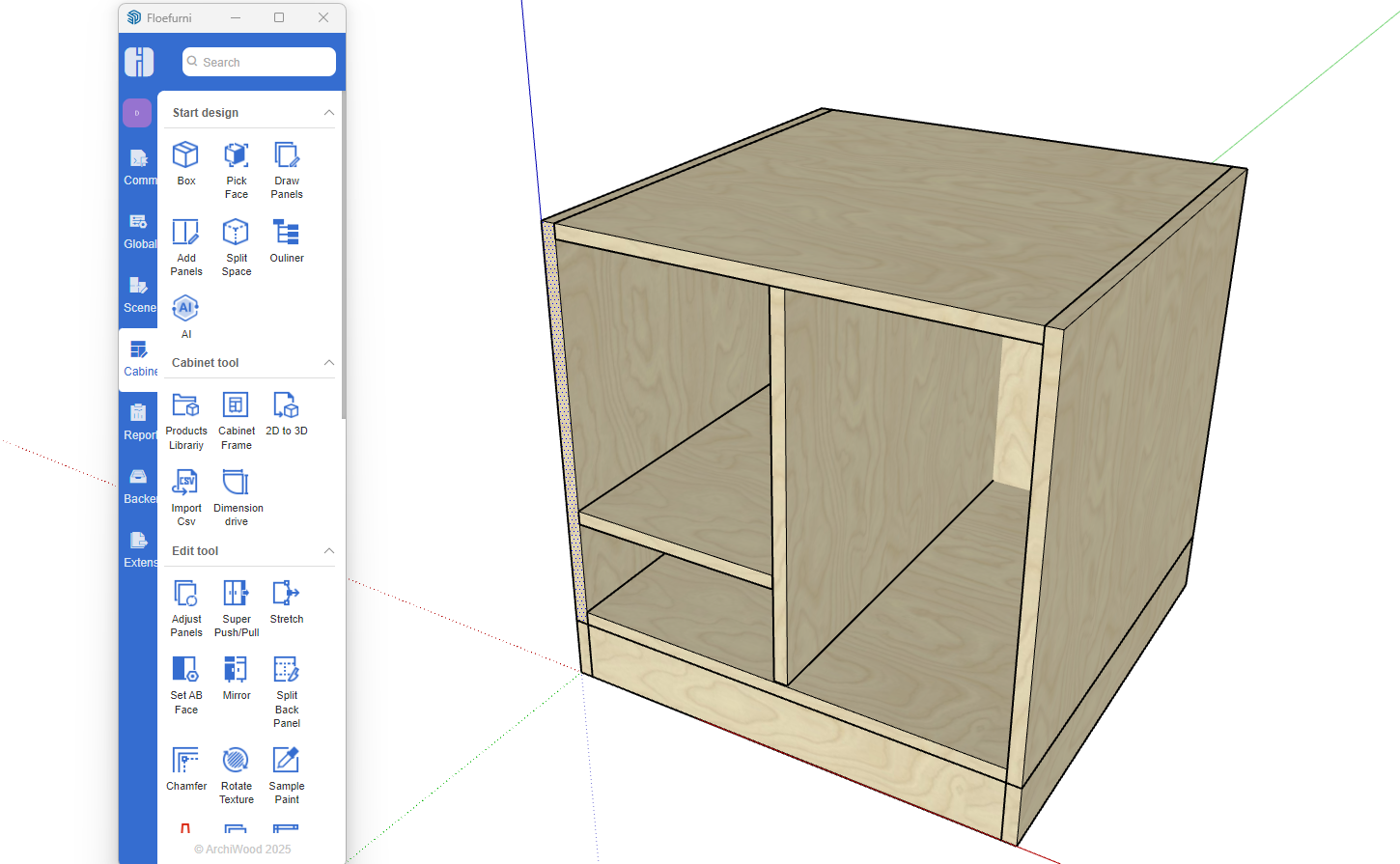
- If you don't want the push/pull to affect other panels, press the Alt key
Pushing/Pulling Internal Space Components
- Pushing/pulling internal space works the same way as pushing/pulling panels
- If the internal space component is complex, press the Shift key - a red wireframe will appear in the opposite direction, and pressing Shift again will automatically add more
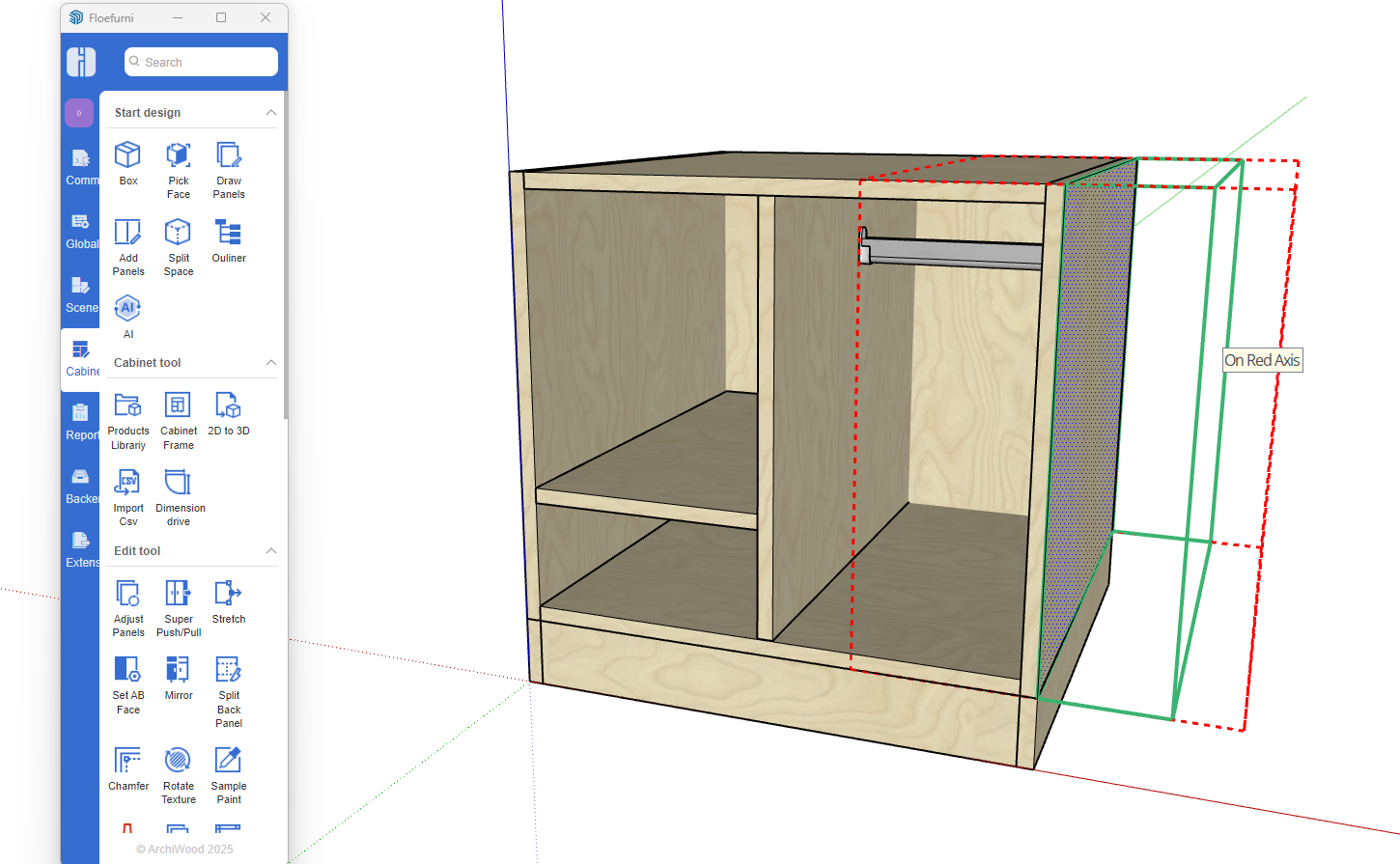
- After pushing/pulling, the internal space will adjust its dimensions accordingly
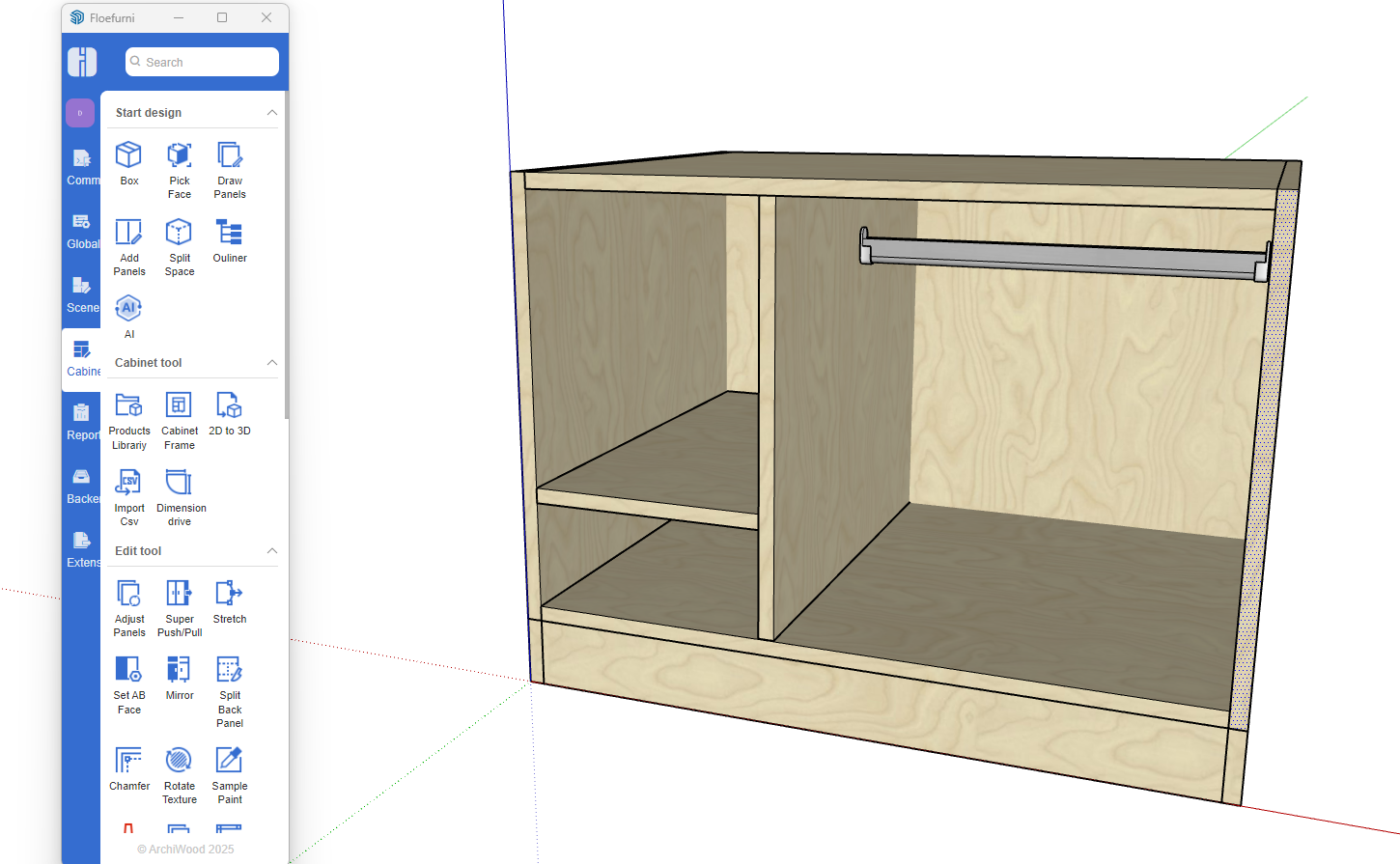
Pushing/Pulling Multiple Cabinets Together
- Select multiple cabinets
- Use the Super Push/Pull tool
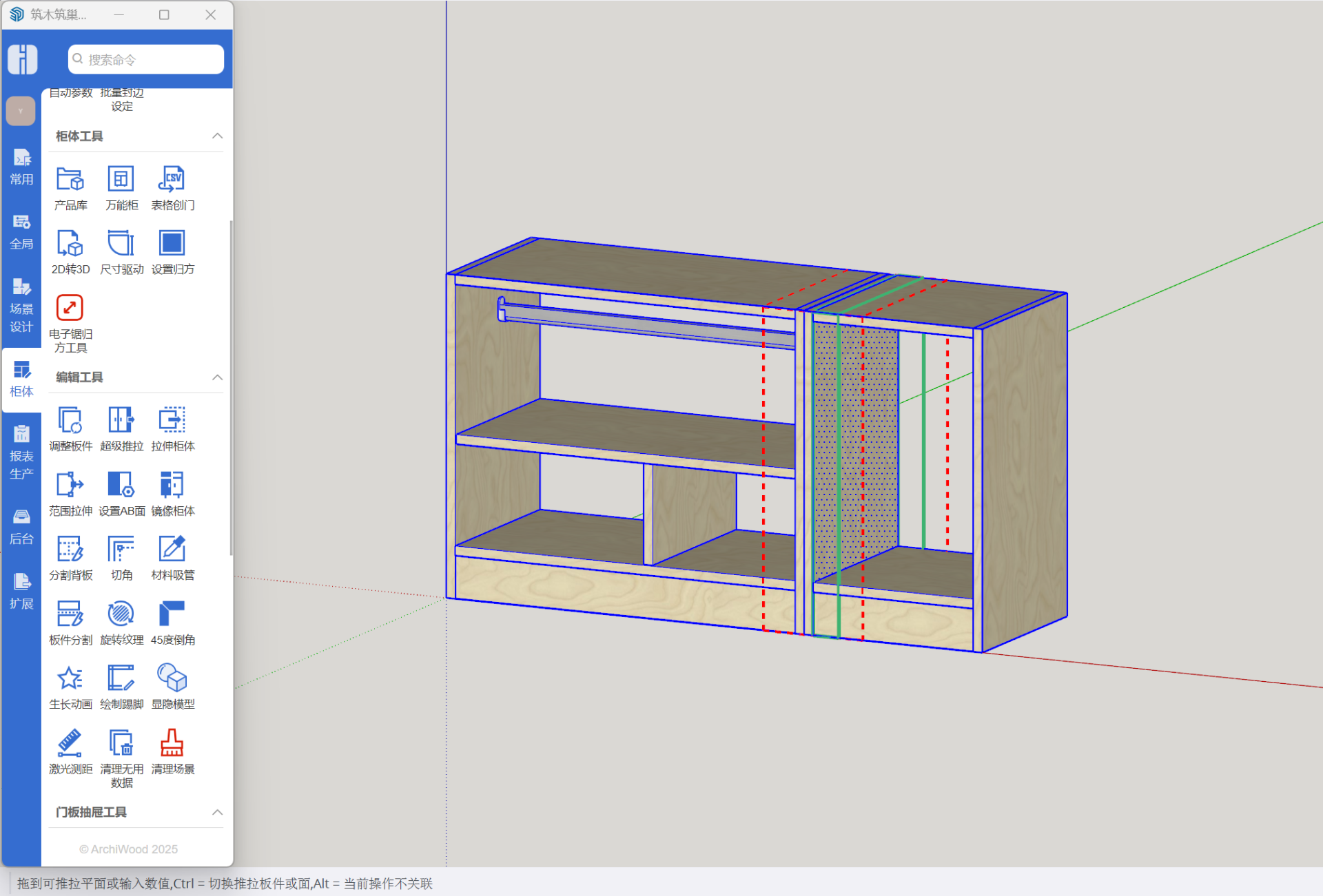
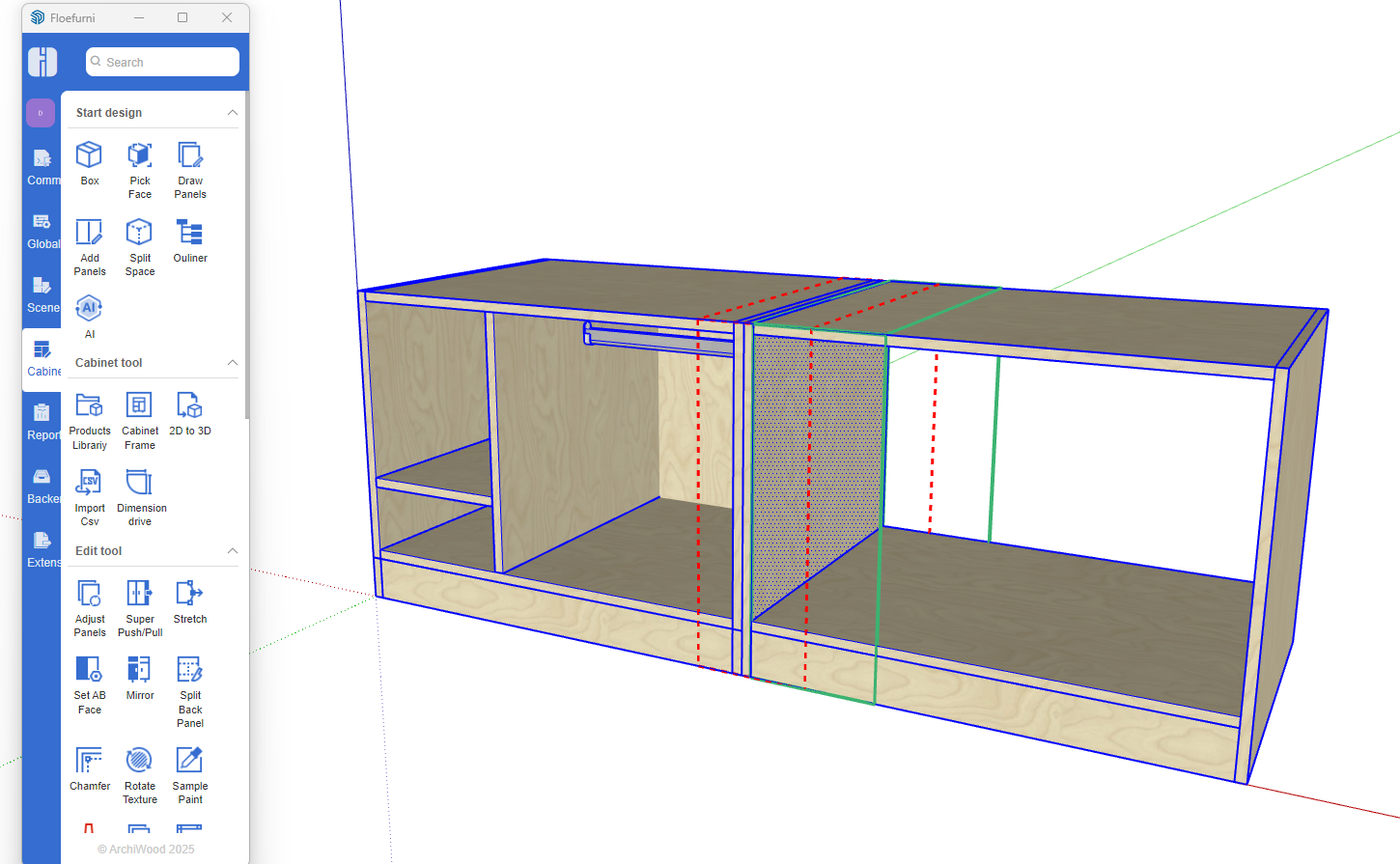
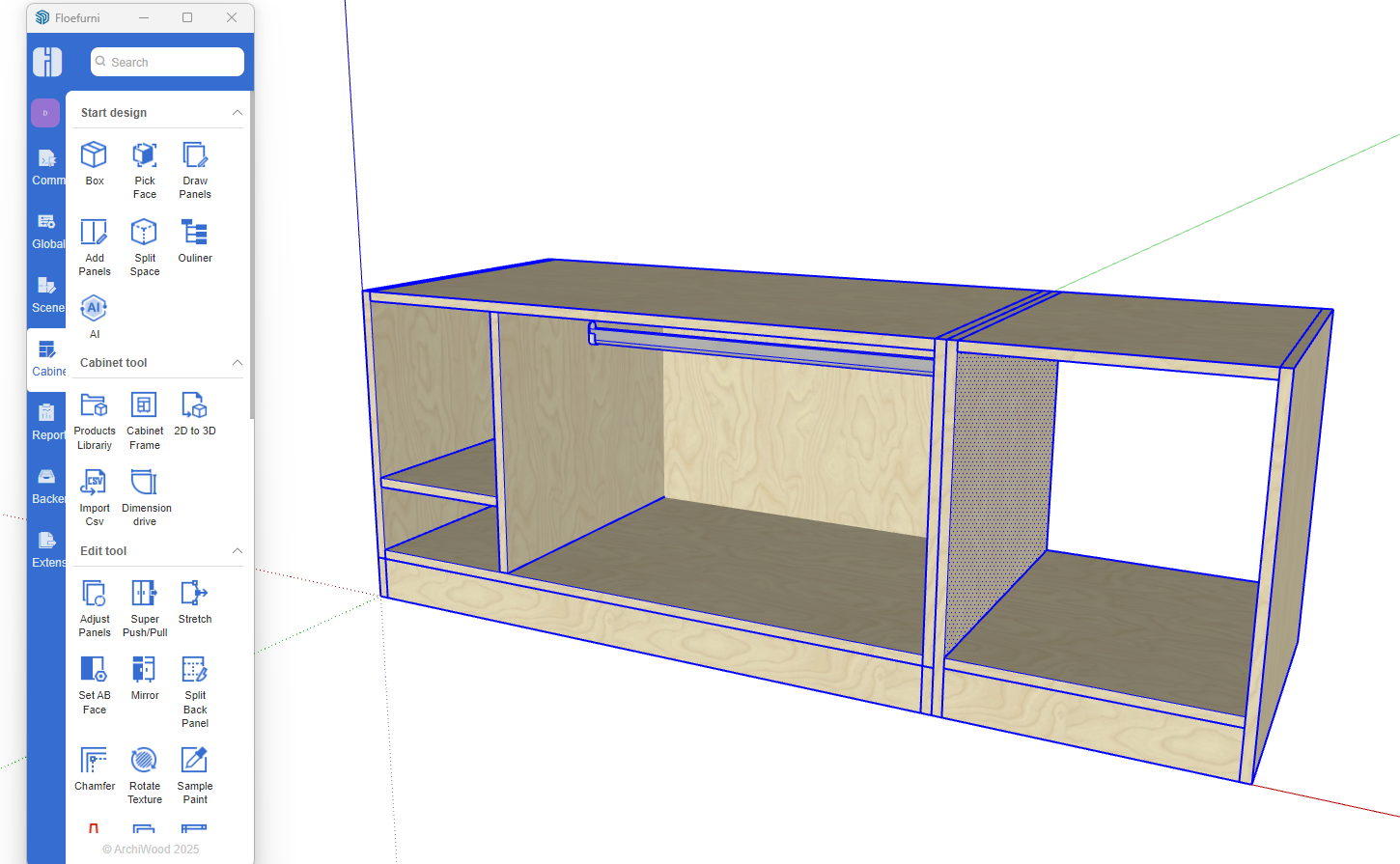
Pushing/Pulling Multiple Panels
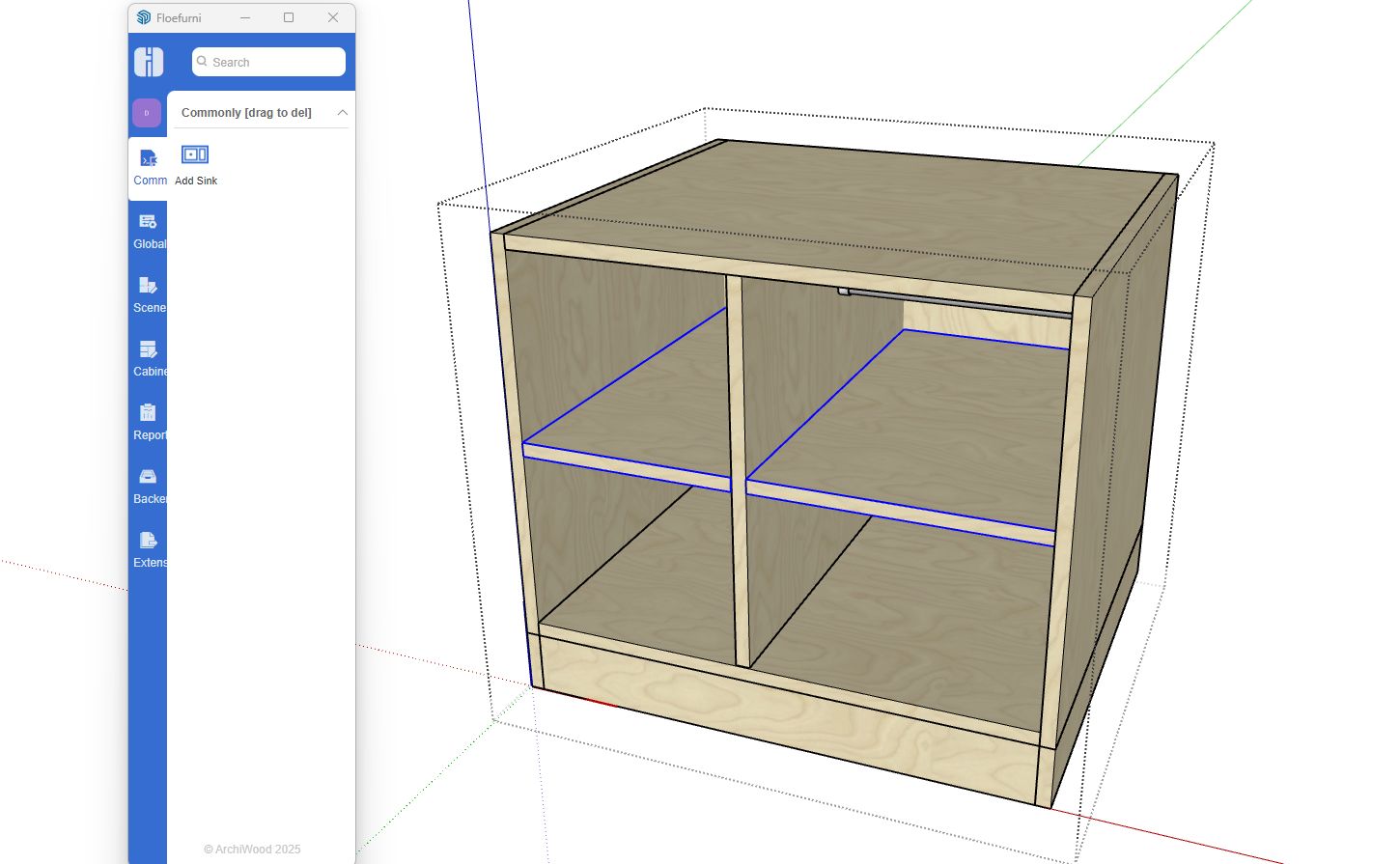
- If you only want to push/pull shelves, double-click the cabinet to enter, then multi-select the shelves and push/pull
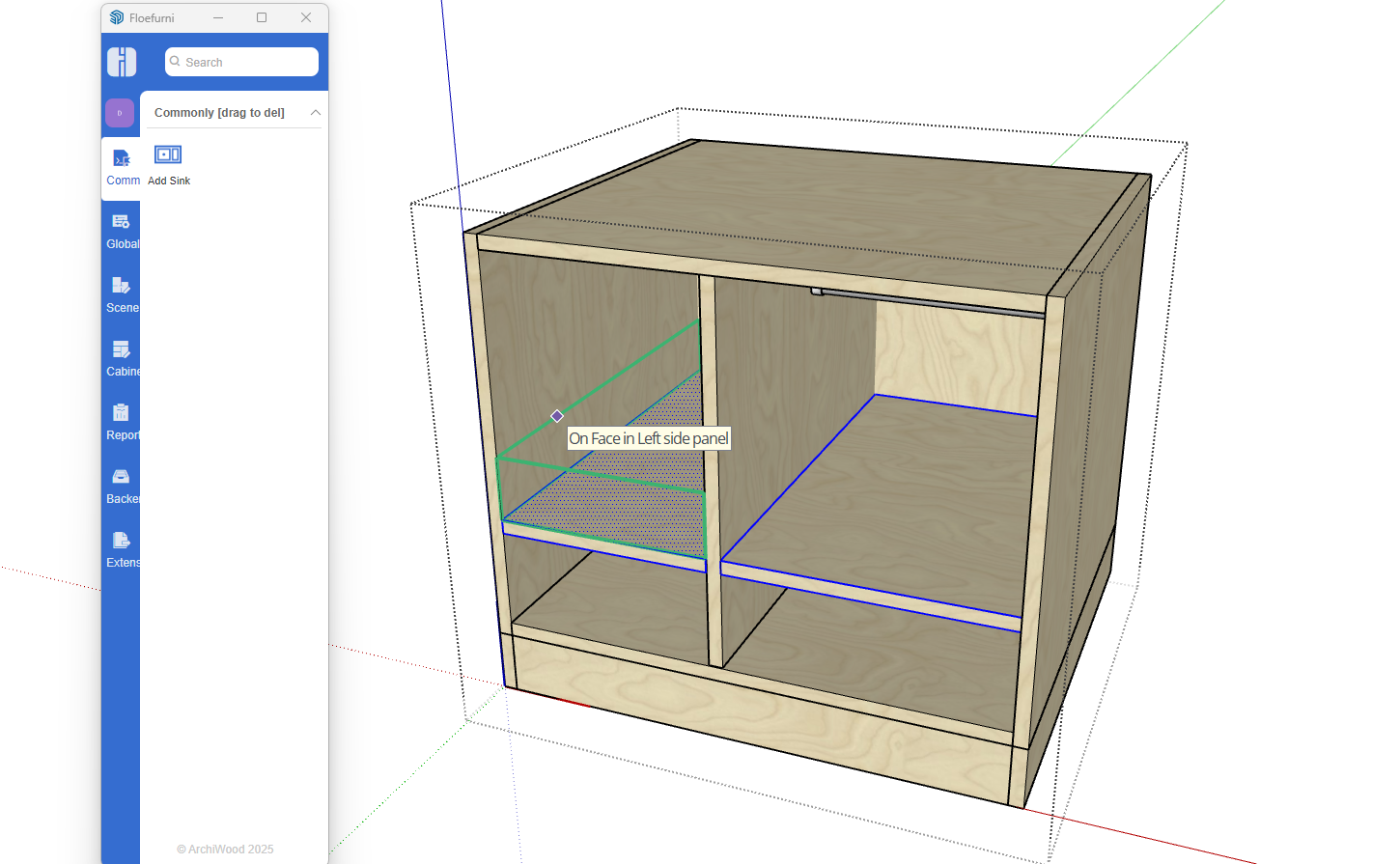
- After pushing/pulling, only the selected objects will change
Video Demonstration

