Introduction
The cabinet generator in the Zhumu Furniture Design System can create commonly used cabinet structural frameworks. By using it, you can quickly and conveniently complete the cabinet framework creation, then add internal space components by picking internal spaces to complete furniture design.
Opening the Cabinet Generator
- Click the following icon to open
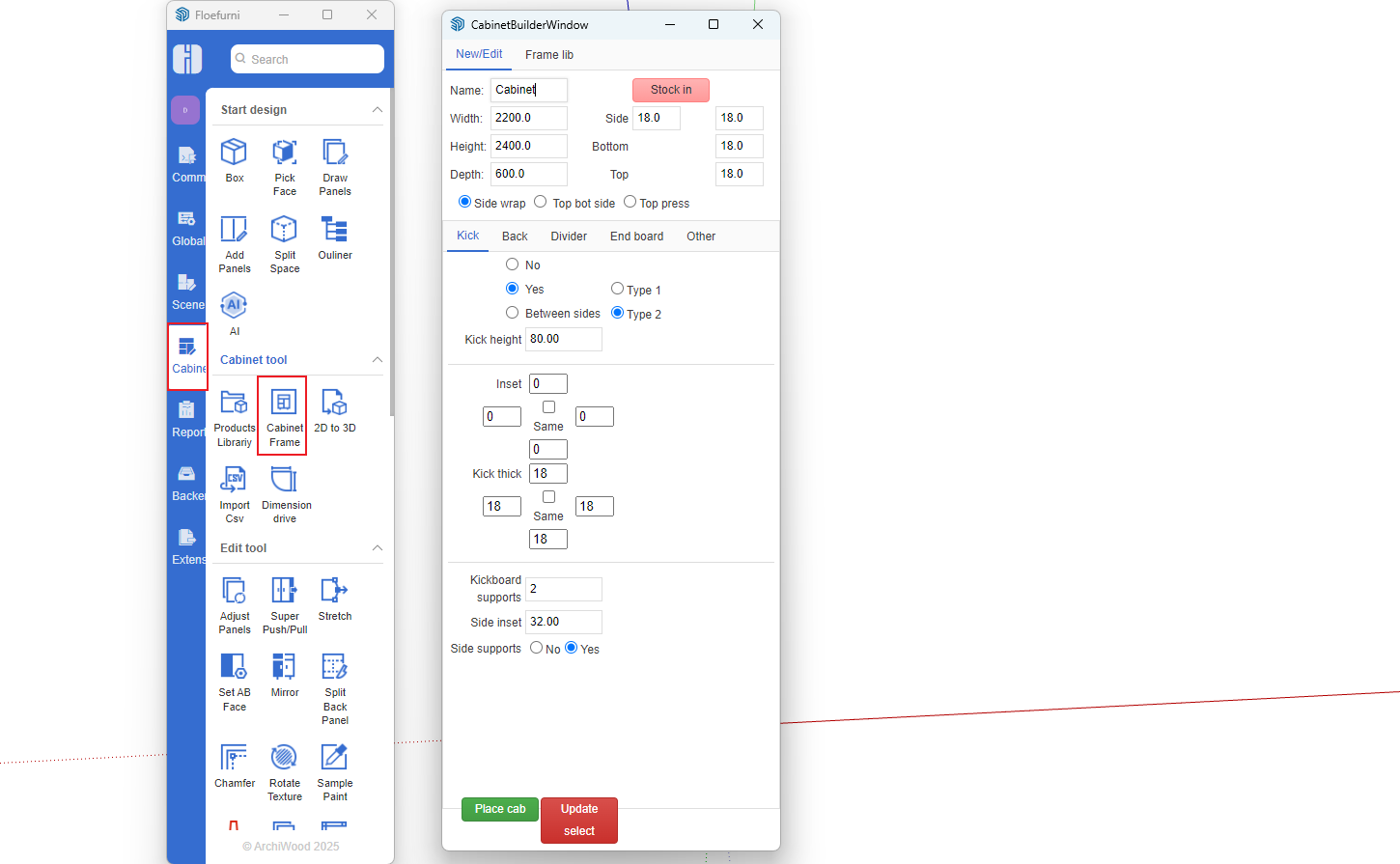
Cabinet Generator Includes Several Main Components
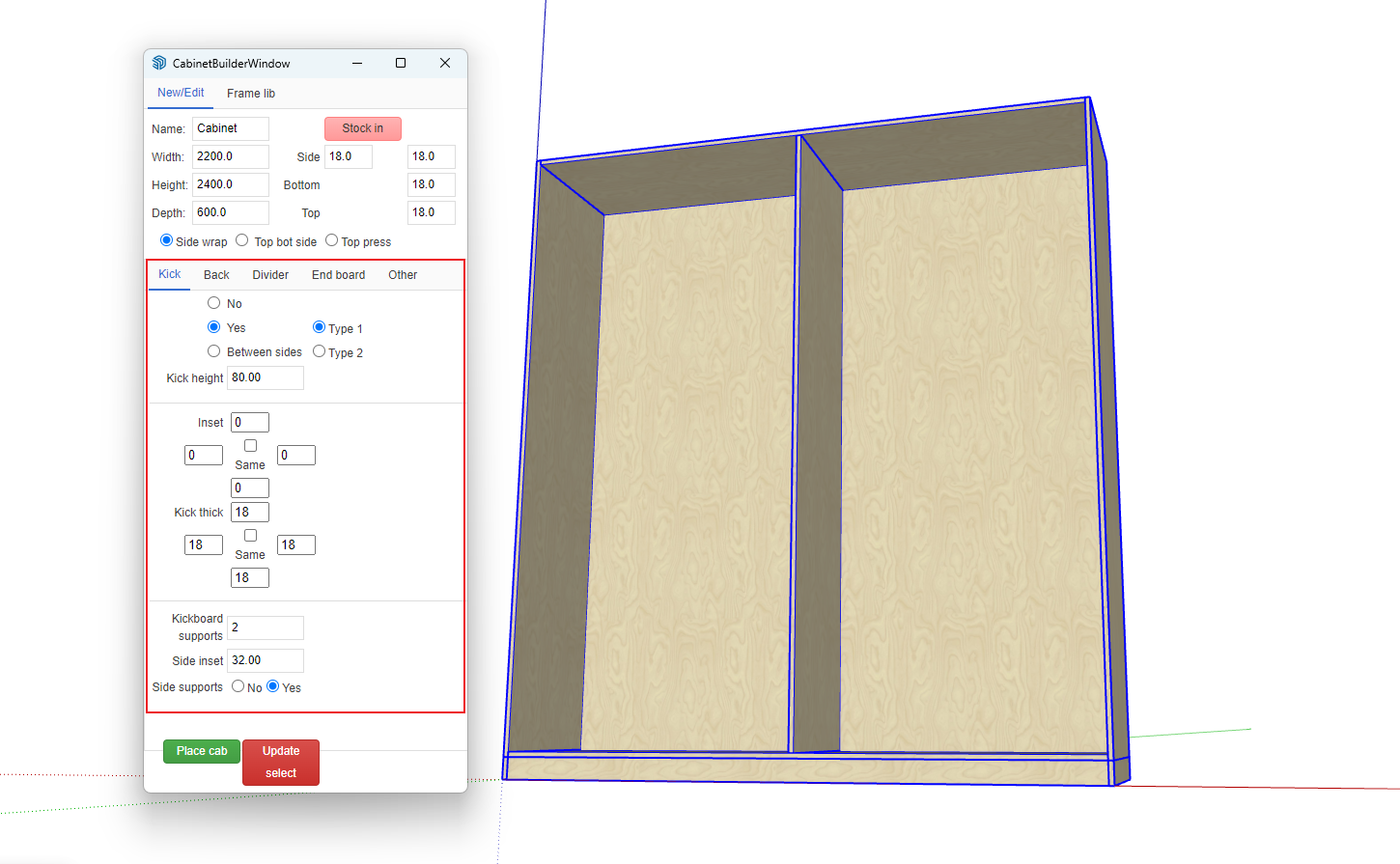
1. Basic dimension information: length, width, height, etc. In basic information, you can choose three cabinet structures: sides enclosing top/bottom, top/bottom enclosing sides, top pressing sides
2. Toe kick
3. Back panel
4. Partitions (center vertical panels)
5. Other options
Placing Cabinets
- According to your actual situation, first input basic information (length, width, height) and click to select cabinet structure. Other options temporarily use default data. Click the Place Cabinet button:
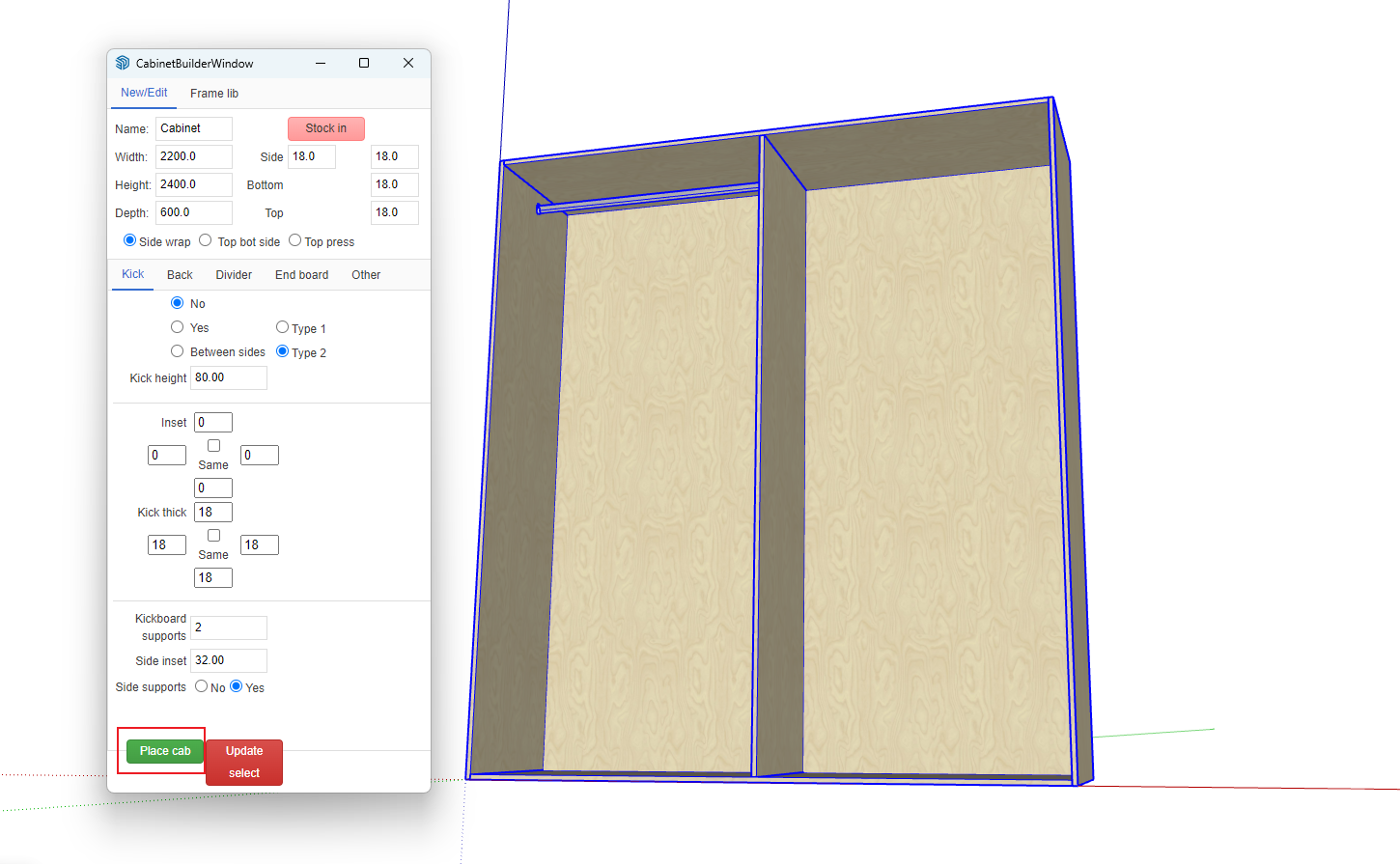
Real-time Cabinet Editing and Modification
- After placing the cabinet, press the spacebar and click to select the cabinet. On the cabinet generator panel, click any option or input dimensions, and the current cabinet will change accordingly.
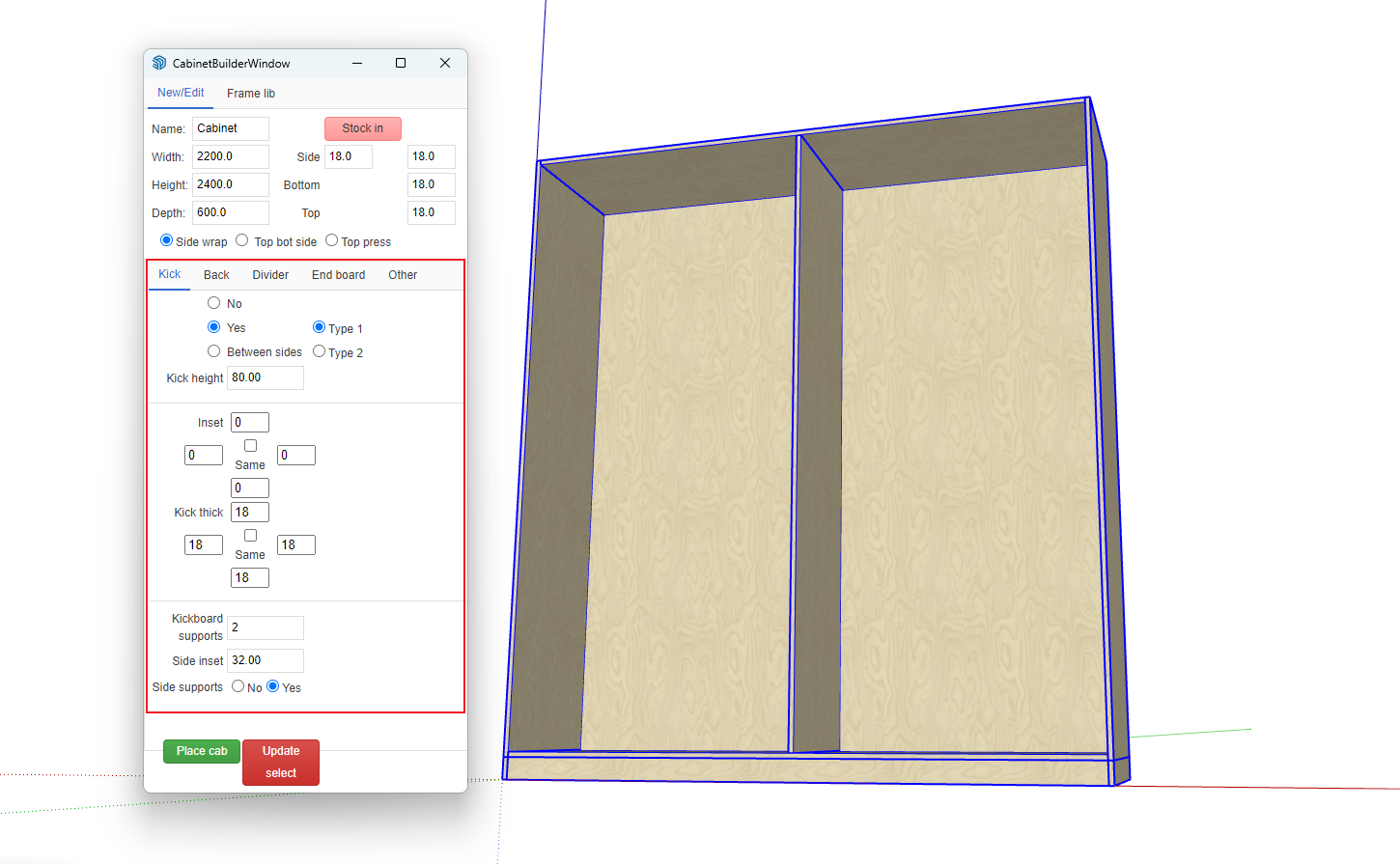
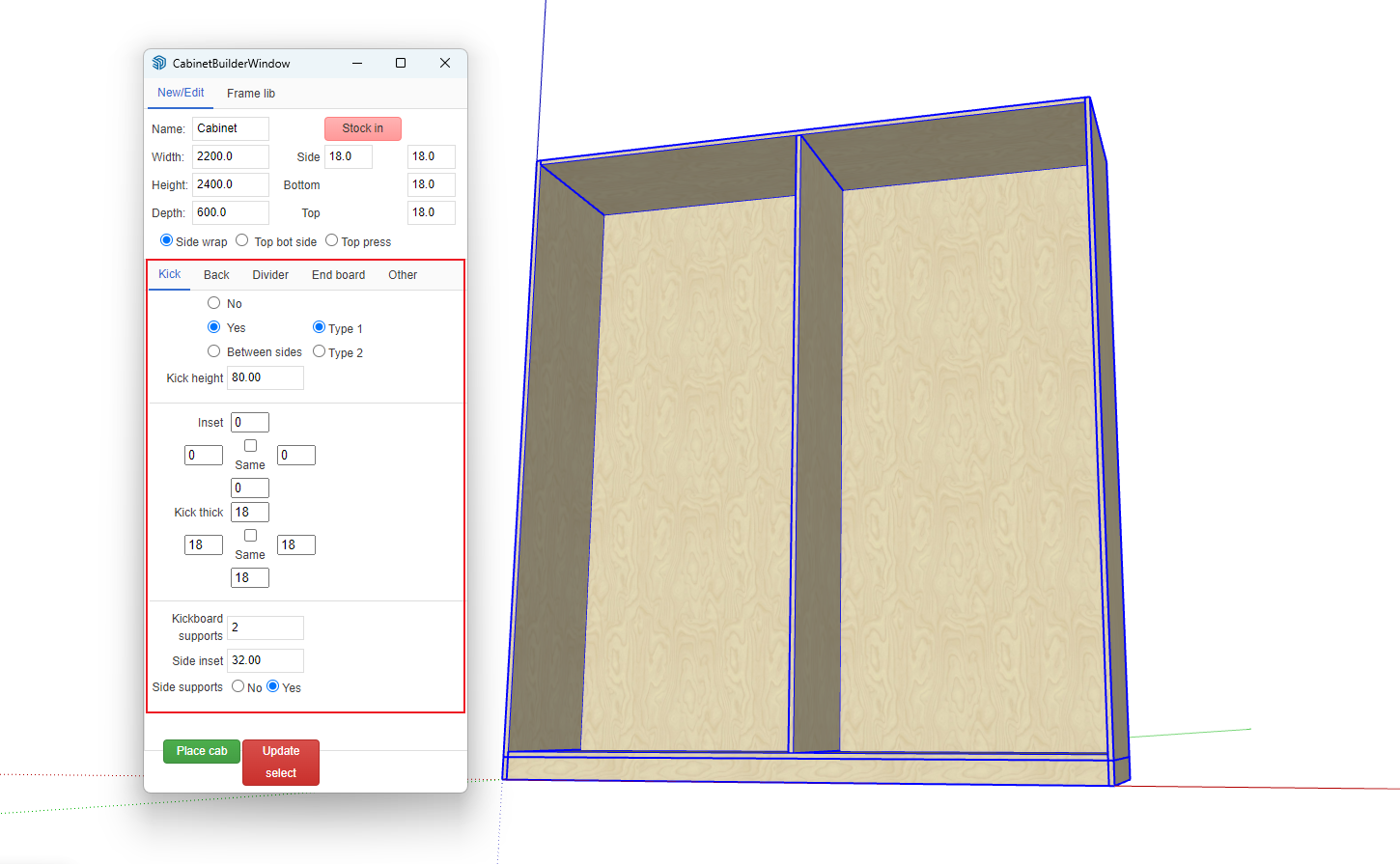
- Complete the detailed editing of the cabinet according to actual needs. You can try clicking each different option to see the changes. The most important is the back panel structure. The back panel structure supports the following methods:
Inserting Internal Space Components
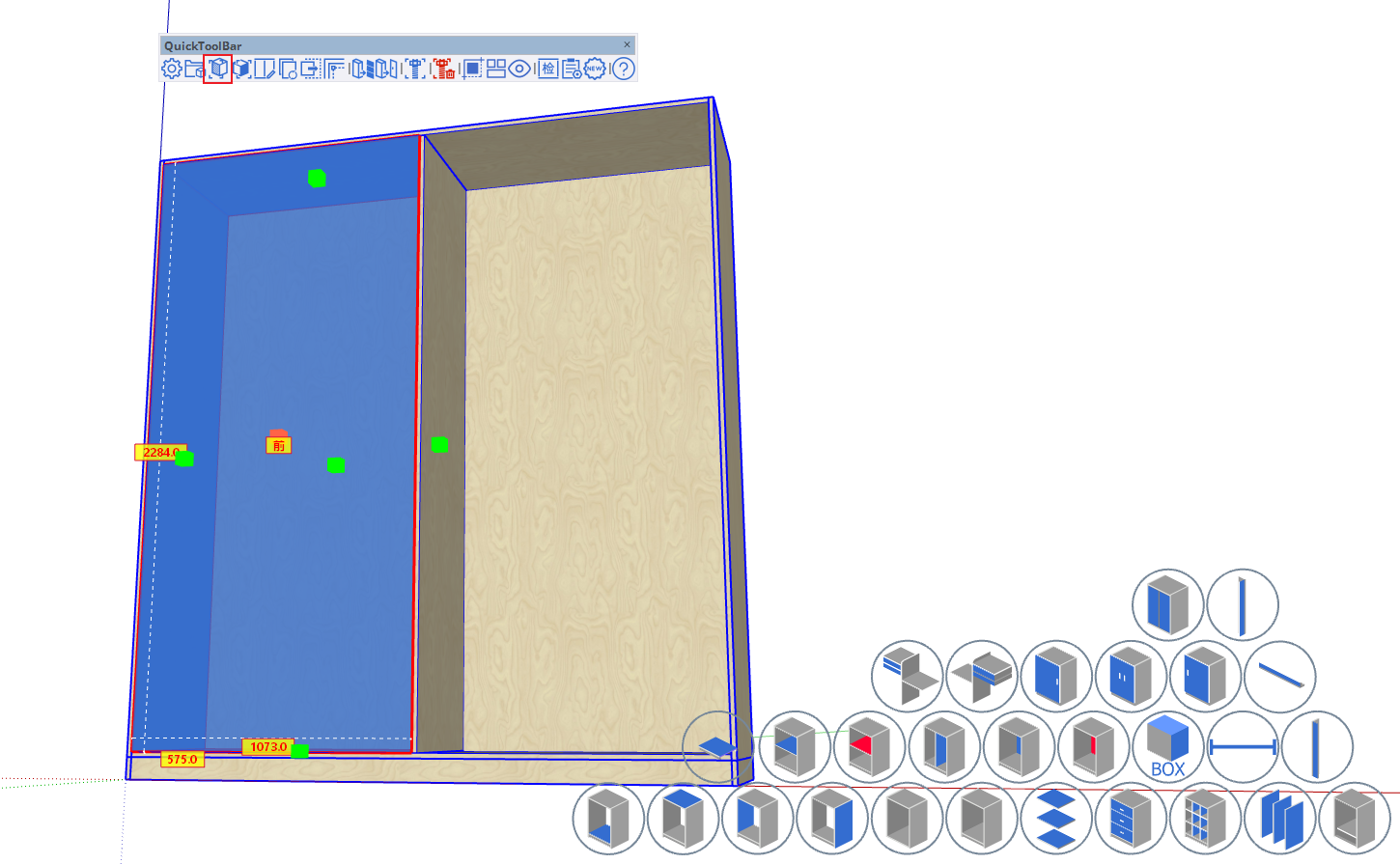
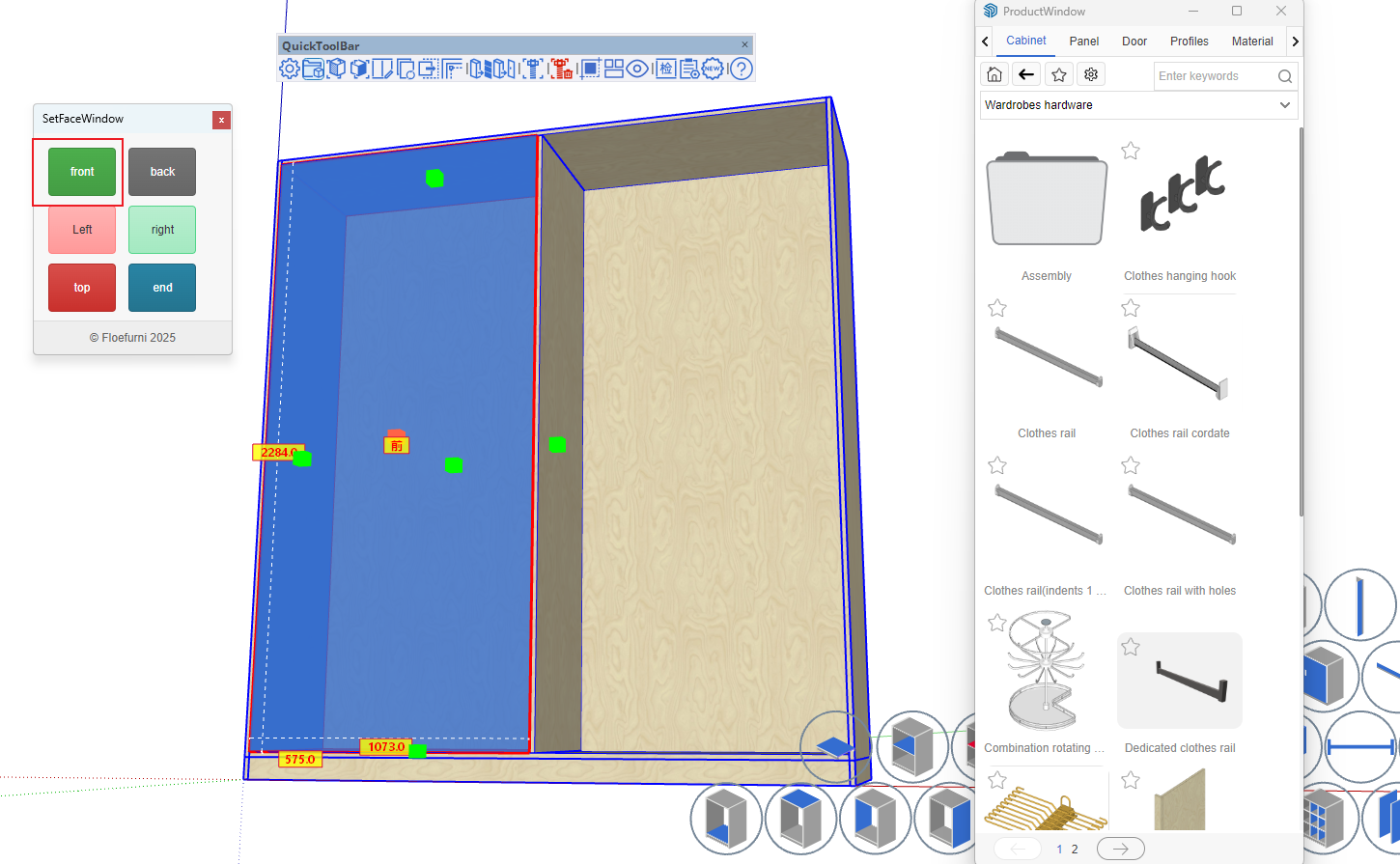
- Click the Pick Internal Space icon -> Pick internal space
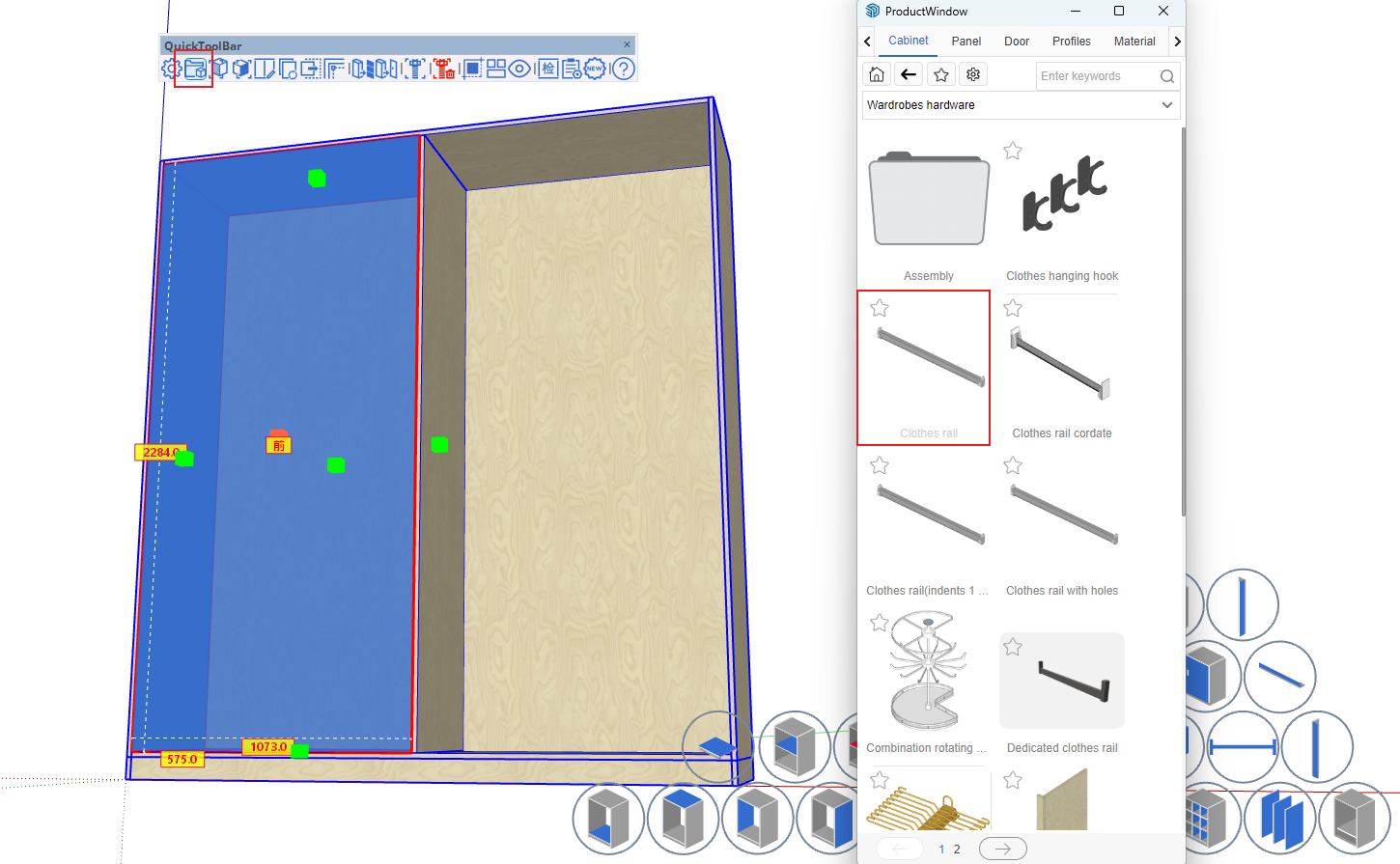
- Open the Product Library
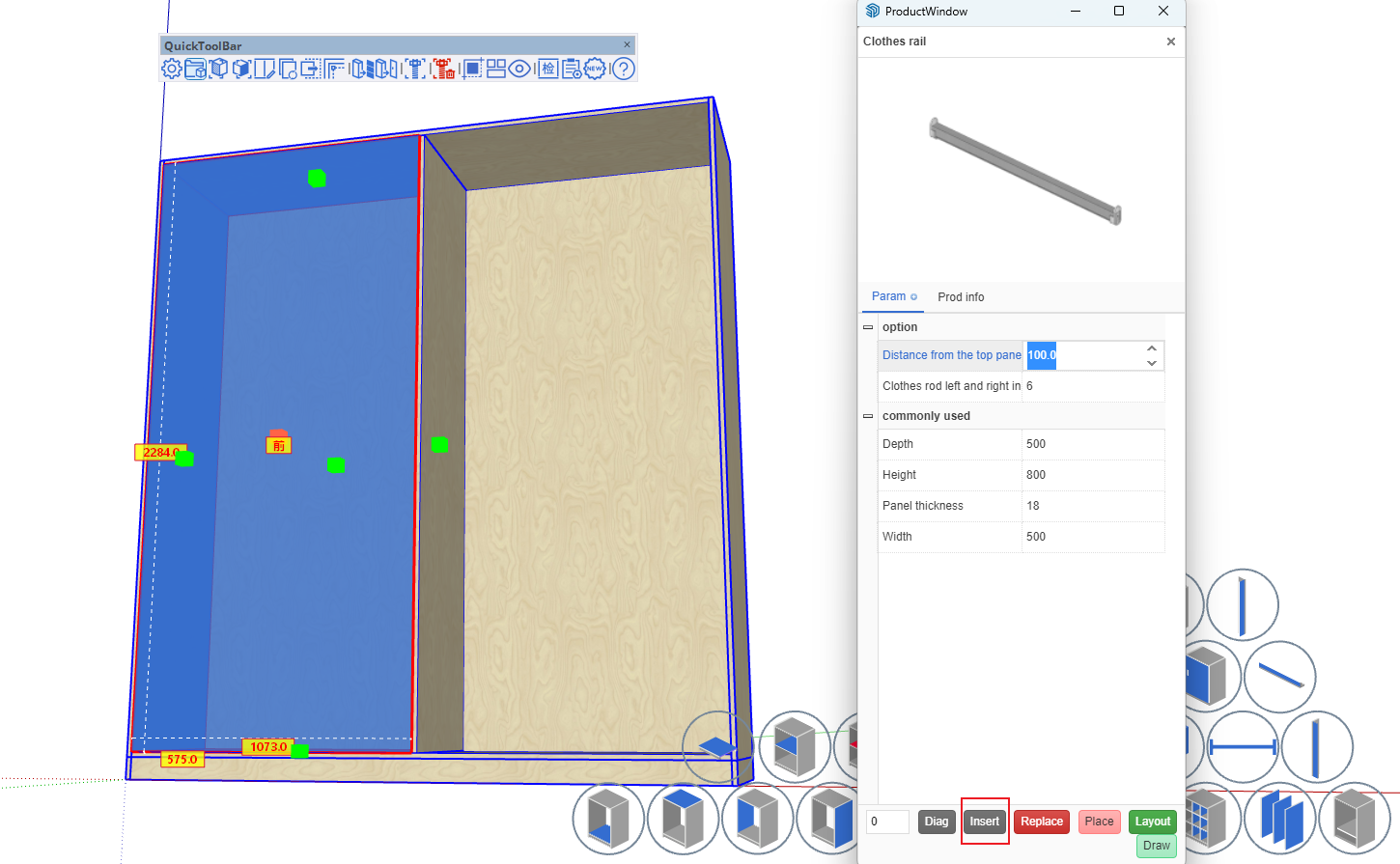
- Select different internal space components and click Insert, or directly insert via code (you can edit the code yourself)
- Result after insertion
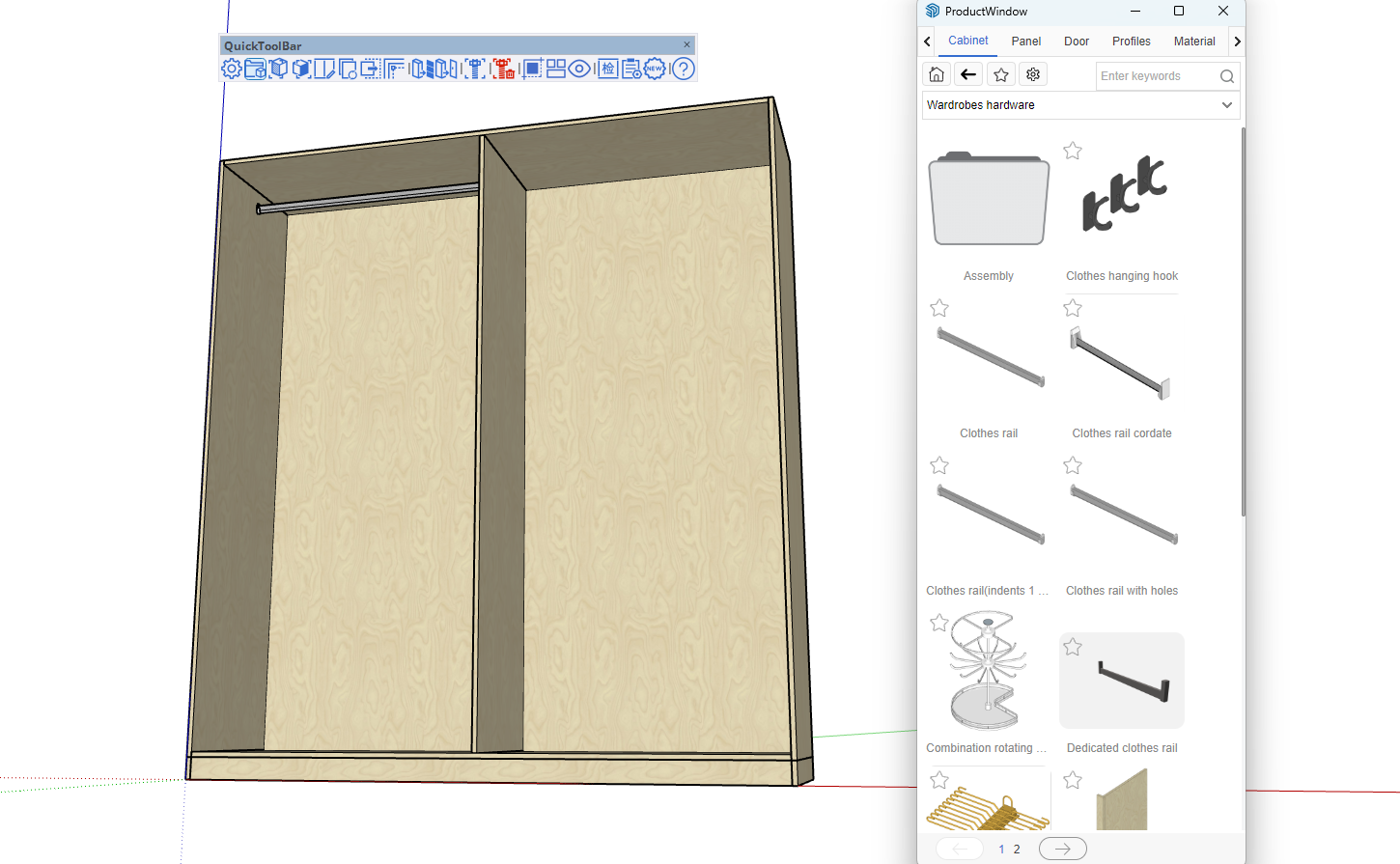
- By analogy, complete the design of other details

